Managing Campaigns in ZipTier
Campaign management in ZipTier gives you the tools to edit, preview, test, and optimize your ZipTier campaigns. This guide covers the My Campaigns dashboard, detail view, editing options, and best practices.
My Campaigns Dashboard
The My Campaigns page is your command center for all campaigns. It provides an at-a-glance view of your campaigns with search, sort, and filter capabilities across all your campaigns. From here, you can click on any campaign to view and edit the details of the campaign including actions such as pausing and resuming campaigns.
Key Components
Campaign Status Indicators
- Draft: Saved but not published
- Preview: Published and available in the Sandbox for testing, but not yet live to visitors
- Live: Active and accessible
- Paused: Temporarily suspended
- Closed: Terminal state. Campaign cannot be edited or resumed.
Sort, Search and Filter
- Sort by campaign name, Created date, Start and End dates
- Search across campaign name
View Campaign
Clicking on a campaign from the Campaign list view takes you to the View Campaign page. This is where you view all the configuration definitions for the campaign and access the campaign links. You can pause and resume a campaign from the View Campaign page as well. The Campaign view page has 3 tabs: Details, Sandbox Testing, and Production Links.
Details Tab
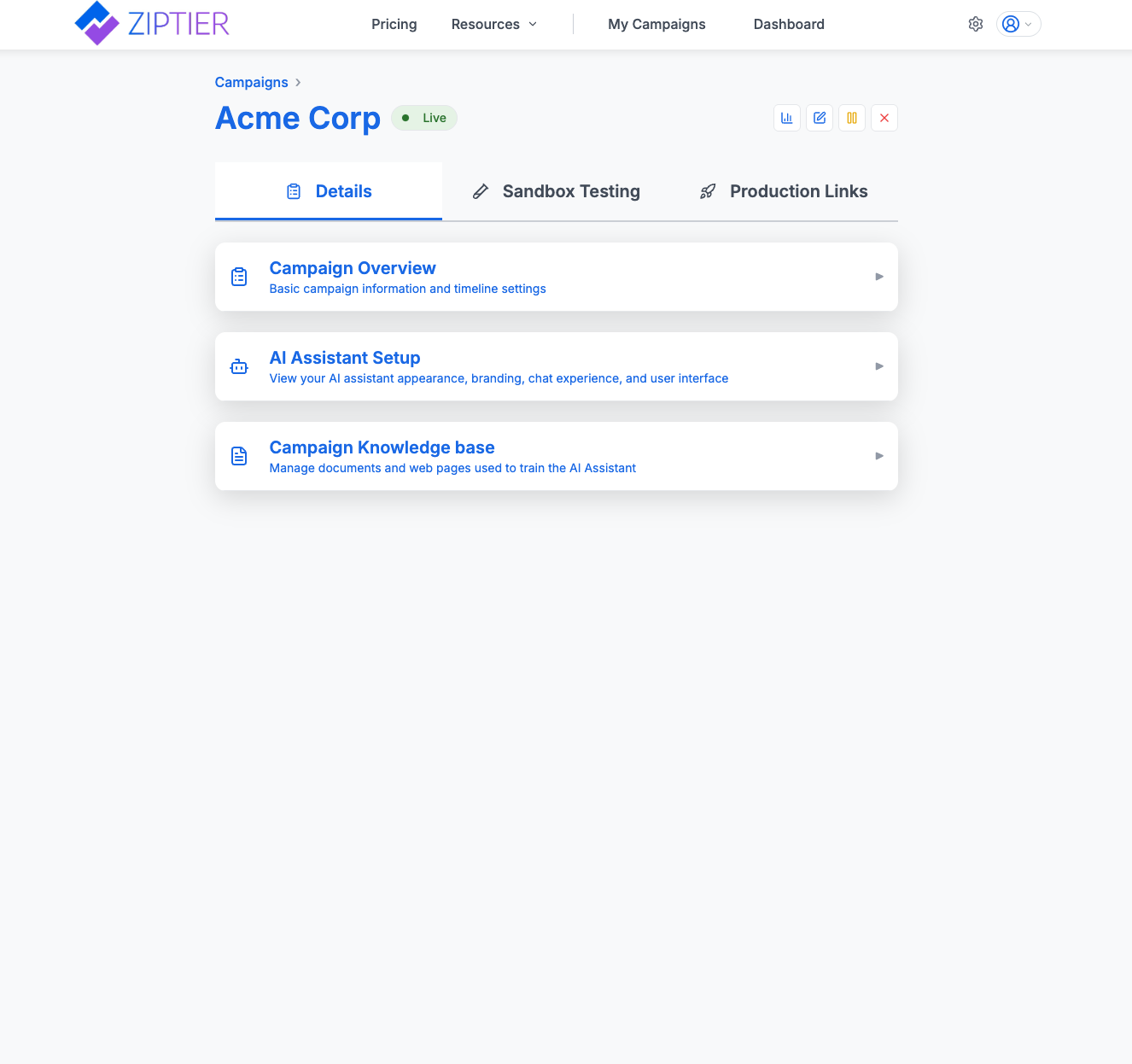
The Details tab provides a complete view of the campaign's latest configuration and settings. The Details tab is split into 3 different sections that mirrors the steps used to create the campaign.
Below is the Details tab of the View Campaign page, with the three collapsed configuration sections.
Step 1: Campaign overview
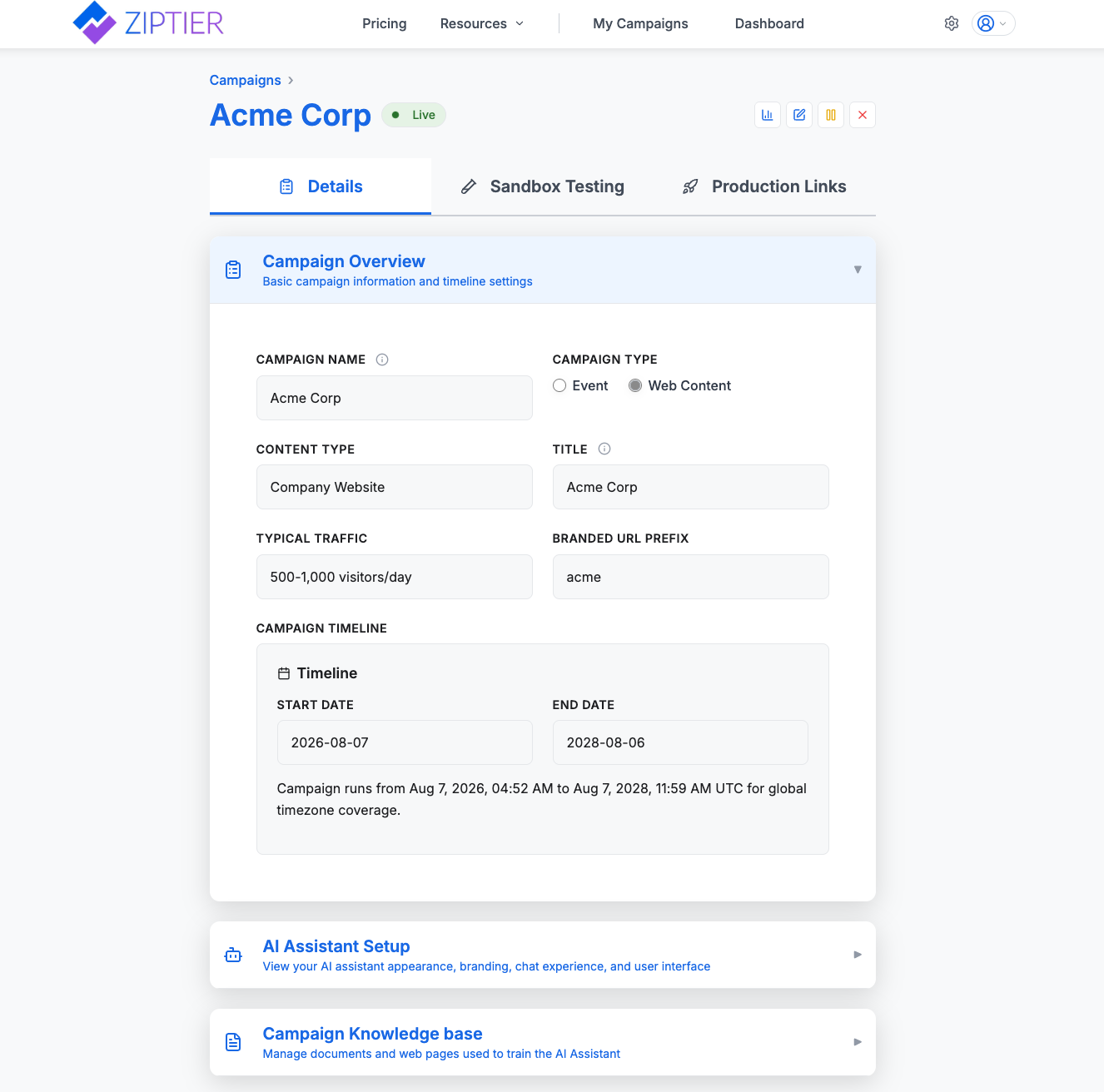
- Campaign details such as Name, description
- Go-live/Start date and end date of the campaign
- Branded URL subdomain (if configured)
Below is the Campaign Overview section expanded, showing the campaign's name, type, and timeline details.
Step 2: AI Assistant setup
This section shows the customization parameters used for the AI Assistant. This includes branding elements, contact information (contact page URL and contact details for different purposes), greeting message, kick off questions, user information collection settings, and CTA links.
Step 3: Campaign Knowledge Base (KB)
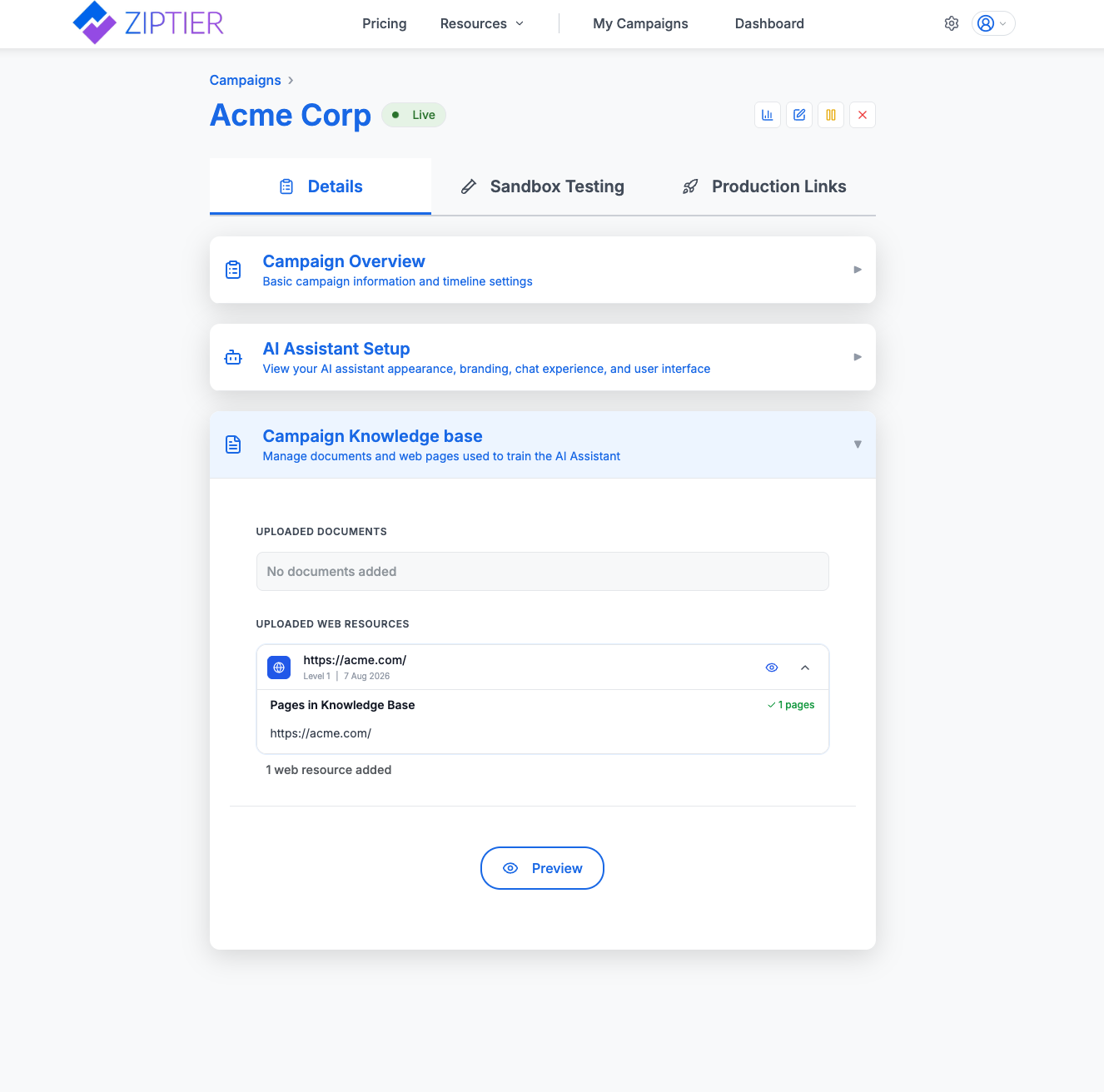
This section shows the campaign's knowledge base (KB), which includes uploaded documents and crawled web pages. The Documents Knowledge Base displays all uploaded documents along with their visibility settings. The Web Pages Knowledge Base shows all websites that have been crawled and added, including page counts and visibility status. Documents and web pages with visibility enabled are shown in the Resources drop-down menu in the AI Assistant header.
Below is the Campaign Knowledge base section expanded, showing the uploaded documents and crawled web resources.
Sandbox Testing and Production Links Tabs
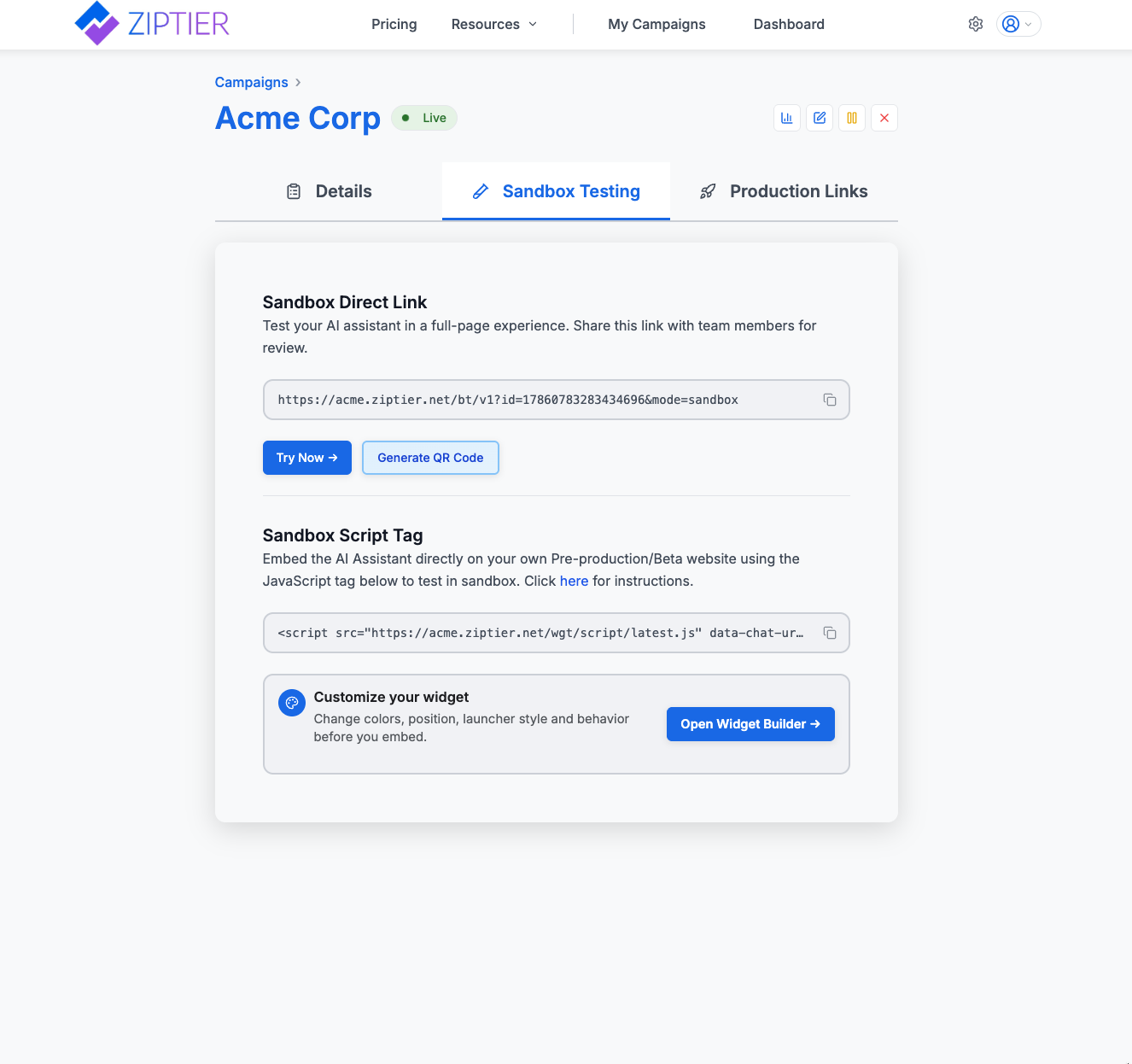
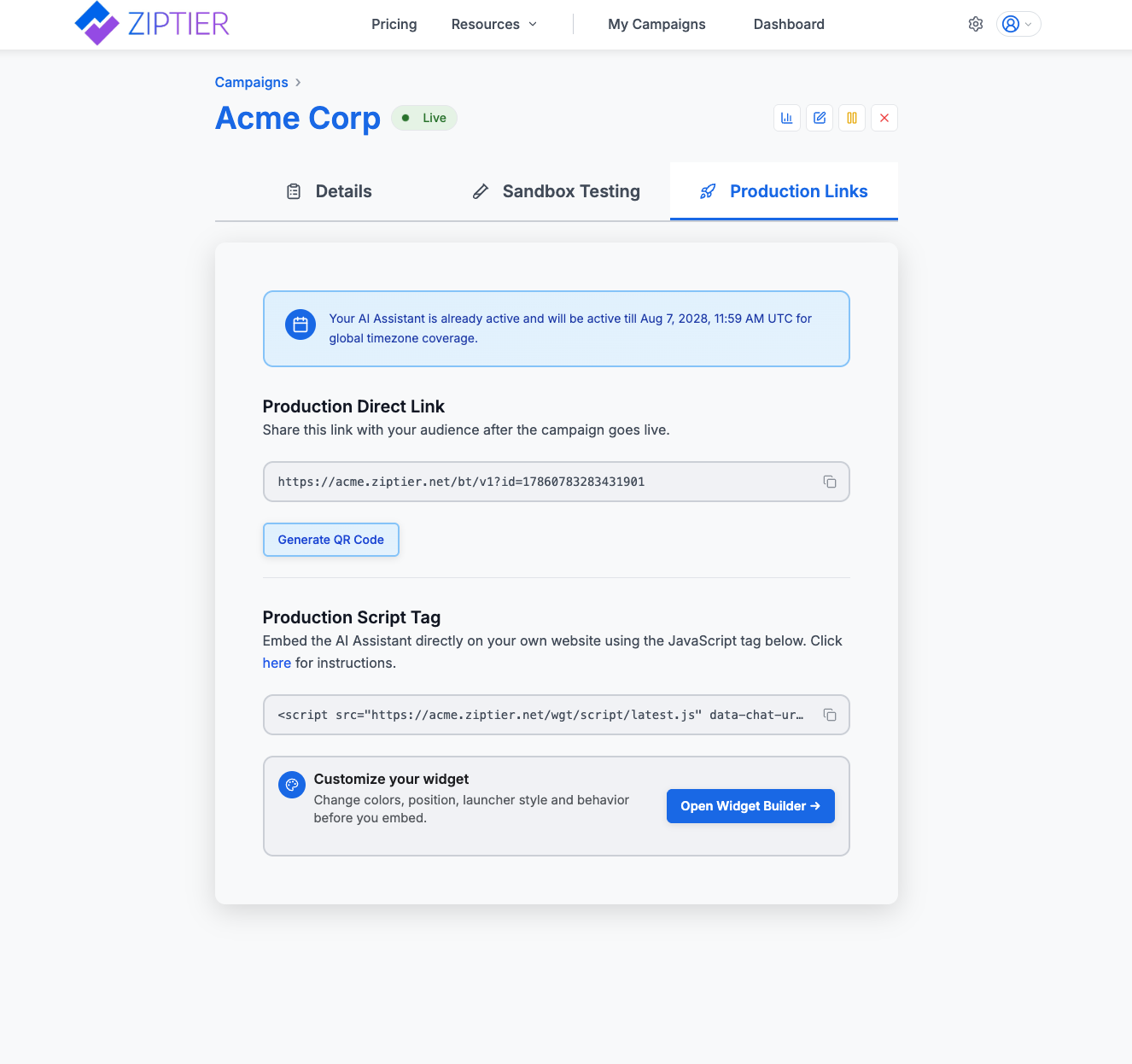
The Sandbox Testing and Production Links tabs are where marketers can fetch publicly accessible links and embed code for the Campaign, for testing and for live use respectively. Each tab offers:
- Direct Link: Standalone web URL for the campaign. This link will take the user to a fully branded chat web page for the campaign.
- QR code: Lets you print the QR code for the Direct link so it can be placed on event signage, brochures, or presentation slides for quick audience access.
- Embed Options: JavaScript snippet that can be copied and pasted into your company webpage to deliver a more integrated experience for the users.
Below is the Sandbox Testing tab, showing the sandbox direct link, QR code, and script tag.
Below is the Production Links tab, showing the live direct link and production script tag.
Campaign Actions
Four icon buttons sit at the top-right of the View Campaign page, next to the status badge. Each opens a different action for the campaign:
Below is the View Campaign page header with the four action buttons: View Analytics, Edit Campaign, Pause/Resume, and Close Campaign.
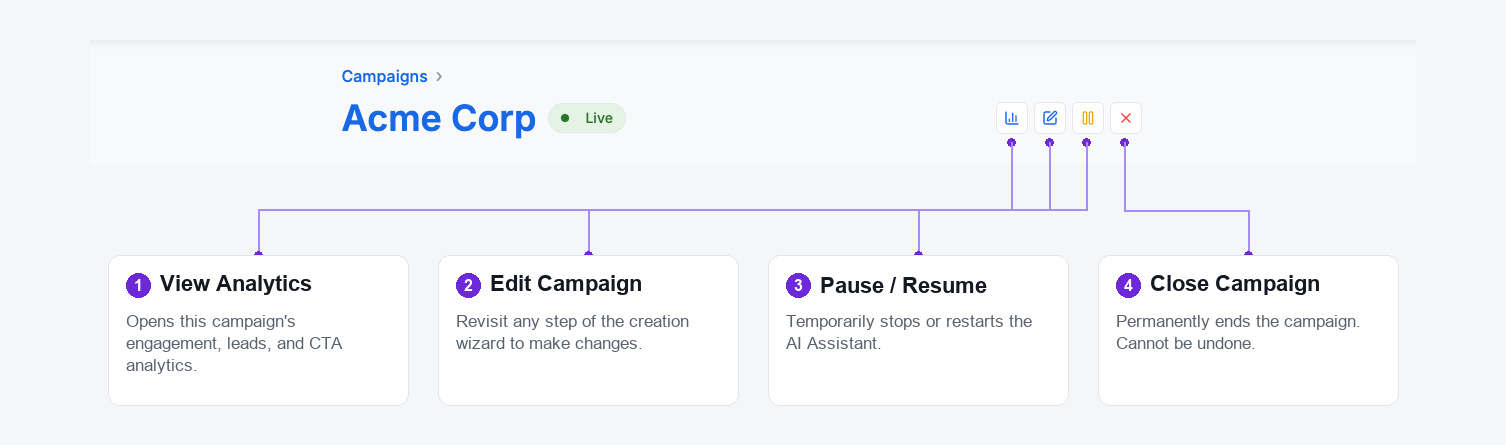
Edit Campaign, Pause/Resume, and Close Campaign are each covered in their own section below.
View Analytics
Click the first icon to jump straight into this campaign's analytics dashboard: engagement metrics, lead-level detail, CTA clicks, and knowledge base gaps, all scoped to this one campaign rather than your whole account.
This is a non-disruptive, read-only action: it never affects whether the campaign is live, and you can open it as often as you like. For the full breakdown of what each panel shows, see Analytics Overview.
Edit Campaign
Edit Campaign is where you can fine-tune every aspect of your campaign after it has been created. It mirrors the structure of the Create Campaign wizard flow and lets you update campaign details, customization parameters, and the campaign knowledge base (documents and web pages) at any time.
When to Make Changes
Marketers often revisit the Edit View during a campaign for several reasons:
- Based on Analytics Feedback
If campaign analytics show prospects asking questions the AI cannot answer, you can update the knowledge base by adding missing documents, web pages, FAQs, or product details. - Fixing Knowledge Base Issues
If you notice outdated, inaccurate, or incomplete information in uploaded documents or crawled web pages. When the source is a website that has since changed, use Refreshing Web Content to rescan it instead of deleting and re-adding the site. - Optimizing Engagement
If engagement rates are low, you might edit the welcome message or conversation starters to make them more compelling and relevant. - User Information Adjustments
If the sales team requests more (or fewer) data points, you can update user information fields, for example, making Number of Employees mandatory for enterprise leads or turning fields off for a top-of-funnel campaign. Each enabled field is Mandatory or Optional, with up to 2 fields on top of the primary contact. - Extending Campaign Duration
If a campaign is performing well, you can extend the end date, so the AI Assistant remains live beyond the originally planned timeframe.
Tip: Treat Edit Campaign not only as a setup tool but as an ongoing optimization workspace. Regular tweaks (guided by analytics, user feedback, or sales input) keep your campaigns relevant and high-performing.
Refreshing Web Content (Rescan)
Websites in your knowledge base are a snapshot taken at the moment you crawled them. When the underlying pages change (new pricing, updated programs, revised dates, added product pages), the AI Assistant keeps answering from the old snapshot until you refresh it. Rescan re-crawls a site that is already in the knowledge base and replaces it with a fresh copy, without you having to delete the site and set it up again.
How to rescan a website
- Open Edit Campaign and go to the Campaign Knowledge Base step.
- Switch to the Web Knowledge Base tab and find the website card you want to refresh.
- Click the circular arrow (↻) Rescan website icon in the card header. ZipTier pre-fills the crawler with the site's original URL and crawl depth and starts the crawl automatically.
- Review the results. Pages already in your knowledge base are listed first and pre-selected; newly discovered pages are listed below, unselected, so you can decide what to add.
- Click Add to Knowledge Base to process the refreshed set of pages.
Note: Include and exclude path filters from the original crawl are not carried over into a rescan. If you narrowed the original crawl with path filters, re-apply them before adding the results.
What happens to the live campaign
Rescanning is not a disruptive action. The existing version of the website stays in the knowledge base while the rescan processes, so a live AI Assistant keeps answering normally throughout; there is no need to pause the campaign. Processing runs in the background, and you can leave the page and come back to it.
Choosing which version to keep
A rescan produces a second copy of the site, and only one copy should survive. How that is resolved depends on the outcome of the crawl:
- Every page processed successfully
The rescanned version replaces the previous one automatically. Click Done in the results panel and the old version is removed for you. - One or more pages failed
The results panel asks you to choose. Keep rescanned version keeps the new crawl, accepting that the failed pages are missing from it. Keep previous version discards the rescan and restores exactly what you had before. Whichever version you do not keep is deleted along with all of its pages.
Resolve the decision before moving on: until you choose, both versions of the site are active in the knowledge base, which can lead to duplicate content and inconsistent AI Assistant answers. If you close the panel without deciding, the website card is flagged with an amber warning triangle: click it to reopen the choice. ZipTier also restores a pending decision automatically the next time you open the campaign.
When to rescan
- Pricing, packages, dates, or eligibility details changed on your site.
- You published new pages you want the assistant to know about: a rescan surfaces them as newly discovered pages.
- Knowledge Base Gaps shows prospects asking about content that already exists on your website.
- The campaign has reached its website limit and you need fresher content. Rescanning does not count as adding a new website, so it works even when Start Crawl is disabled.
For the full walkthrough of the crawler, page selection, and processing behaviour, see Step 3: Campaign Knowledge Base (KB).
Pause and Resume
In addition to viewing campaign details, you can also pause a live campaign and resume it subsequently from the View campaign page. Pausing a live campaign is a disruptive action since this will stop any existing conversations your prospects may be having with the AI Assistant and block new chat sessions. Consider this option only when absolutely necessary, such as when you need to update critical documents or fix major issues and you need more time to prepare these updates. You can resume a paused campaign at any time.
Close Campaign
You can close a campaign in any of the other states such as draft, live, preview or paused. Closing a live campaign is a disruptive action since this will stop any existing conversations your prospects may be having with the AI Assistant and block new chat sessions. Closing a campaign is an irreversible action and you will not be able to edit or resume a closed campaign.
Best Practices
Successful campaign management in ZipTier isn't just about setup: it's about keeping your campaigns organized, optimized, and aligned with your marketing goals over time. Following these best practices will help ensure that your AI Assistants deliver consistent value, stay relevant, and maximize engagement.
- Keep your knowledge base fresh
Update documents and web pages regularly or whenever new product info, pricing, or FAQs become available. Make rescanning your websites part of your site-update process, so the assistant is refreshed at the same time the pages change rather than weeks later. - Turn conversations into content
Add FAQs or missing details based on the most common questions prospects are asking. - Adopt A/B testing as a habit
Test one element at a time (welcome message, CTAs, or conversation starters). Run tests for at least 1 week to gather meaningful data. - Monitor key metrics closely
- Daily in the first week of launch (to catch setup issues early)
- Weekly thereafter for ongoing optimization
- Watch especially for engagement rate, lead quality, and response accuracy.
- Align with campaign goals
Before launch, clearly define whether the goal is lead generation, education, or event engagement, and adjust content, CTAs, and lead forms accordingly.
Troubleshooting
Even with the best setup, campaigns may sometimes behave differently than expected. The issues are usually simple to diagnose and resolve. Below are common scenarios marketers run into, along with practical steps to fix them quickly.
Campaign not live
- Confirm the start date/time is correct and the state of the campaign is Live.
- Ensure the campaign is not paused.
- Verify the end date has not already passed.
- Check for any error messages in the dashboard.
Low engagement
- Refine the welcome message to make it more inviting and clearly state the value.
- Update conversation starters so they are relevant to your audience's needs.
- Verify that the embed code is correctly installed on your site or landing page.
- Test overall page performance: if the page is slow, users may drop off before engaging.
User information capture issues
- Simplify the form if required fields are too restrictive and causing drop-offs.
- Test on multiple devices and browsers to rule out compatibility issues.
- Check validation rules (e.g., overly strict email/phone formats).
- Confirm that captured leads are syncing into your CRM or reporting exports.
Content not updating
- Allow 5–10 minutes for processing after new document uploads or web page crawls.
- For documents, confirm that files are in a supported format (PDF, DOC, DOCX, PPT, PPTX, JPG, PNG, or TXT) and under the size limit (10 MB on Free, 25 MB on paid plans).
- For web pages, check the Web Knowledge Base tab for processing status and any errors during crawling.
- If the assistant is quoting content your website no longer shows, the site is still on its original snapshot: rescan the website to pull in the current pages.
- If a website card shows an amber warning triangle, a rescan is waiting on your decision and both versions of the site are still active. Click the triangle and choose which version to keep.
- Clear your browser cache or test in an incognito window to confirm changes.
- Make sure updated content is attached to the correct campaign and not just saved as drafts.
Tip: Many troubleshooting steps can be avoided by monitoring your analytics regularly and testing updates in Sandbox Mode before publishing them live.