Lead Scoring
Every lead your AI Assistant captures is assigned a High, Medium or Low, so your sales team knows who to contact first. Lead Scoring lets you define what those scores mean for your pipeline.
Scoring is configured per campaign in Step 2 of the campaign wizard. Choose which lead details should influence the score, how much each answer is worth, how much the conversation itself should count, and where the thresholds for High, Medium, and Low fall. ZipTier then scores each lead automatically, with no manual review.
Default scoring logic. Every campaign starts with a default scoring logic based on the intent detected in the conversation. You can change this at any time by adding Fit based rules, changing the weights, or modifying the scoring criteria.
Below is the Lead Scoring section, showing the Fit and Intent weight sliders, the Intent level rules, the Scoring Tiers bar, and the Guardrails toggles.
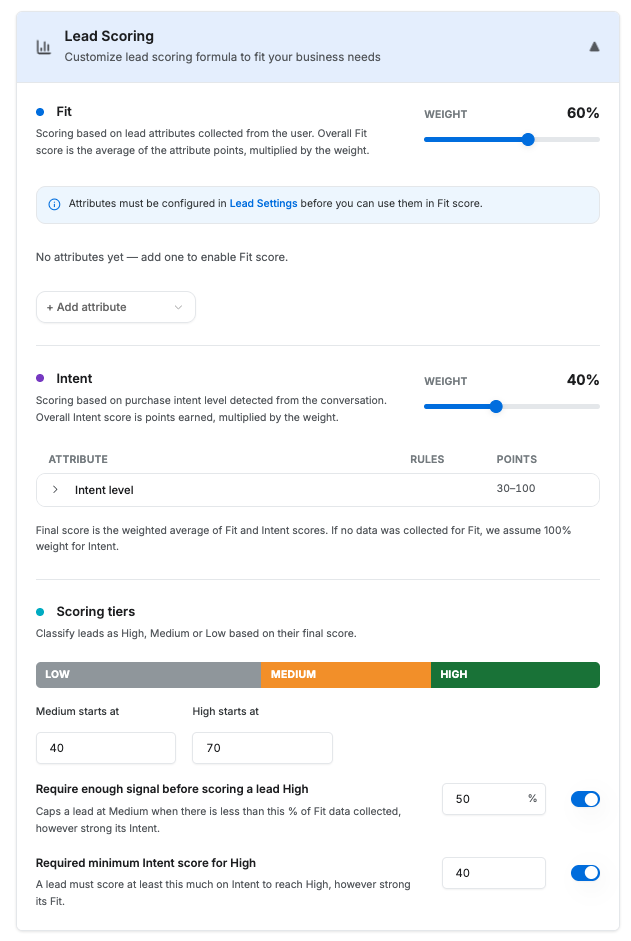
Fit and Intent
Lead scoring is built from two groups: Fit and Intent. Fit tells you how well a lead matches your ideal customer profile. Intent tells you how strongly they're signaling a need or interest in buying. Neither tells the whole story. A VP at a 2,000-person company showing moderate buying intent is strong Fit, moderate Intent. A student asking to sign a contract today is weak Fit, strong Intent. Which one should your sales team call first? That's a business decision, not a guess ZipTier should make. You decide how Fit and Intent should contribute to the final score.
| Group | The question it answers | Where the data comes from |
|---|---|---|
| Fit | Is this the kind of person we sell to? | Details gathered from the prospect during the chat: email, job title, company size or any other fields you define in Lead Settings. |
| Intent | Are they ready to buy? | Detected from the conversation itself. The AI Assistant reads the chat for buying signals and rates the intent High, Medium or Low. See High-Scoring Lead Capture for how those signals are detected. |
How the two groups are weighted
Fit and Intent weights always add up to 100% of the scoring weight, so raising one automatically lowers the other.
- Intent 100 / Fit 0: the default. The conversation decides everything and the collected fields have no impact on the final score.
- Intent 50 / Fit 50: Fit and Intent contribute equally to the final score. A lead needs to be both a good fit and show buying intent to achieve a high score.
- Fit 70 / Intent 30: Best for campaigns where matching your target customer profile matters more than the level of buying intent shown in the conversation.
Start with Fit at zero and raise it. You can add and configure Fit attributes without changing any lead's score. Once you're happy with your rules, increase the Fit weight to bring those attributes into the final score.
How a Score Is Calculated
Every lead goes through four steps, in this order:
- Each attribute receives points, 0–100
ZipTier evaluates the lead's answer against your Fit based rules. The last matching rule determines the points. If no rule matches, the attribute's Any other value points are used.
- Each group calculates its average
Fit score is the average of points across all configured attribute based rules. Intent score is simply the points corresponding to the High, Medium, or Low threshold achieved by the lead.
- Fit and Intent are combined using their weights
The weighted scores produce the composite score, from 0–100, rounded to one decimal place.
- The composite score determines the lead grade
A score at or above the High cutoff is graded High. A score at or above the Medium cutoff is graded Medium. Anything below the Medium cutoff is graded Low. Guardrails, if enabled, are applied last.
Anything the lead did not answer drops out of the average. It is not scored as a zero. If you score three Fit attributes and the visitor only answered two, the Fit score is the average of those two. The unanswered one is removed and the rest are re-weighted. Skipping an optional question never counts against a lead unless you explicitly tell it to (see when there is no answer).
A worked example
Take a campaign configured with Fit 40% / Intent 60%, Medium starting at 40 and High starting at 70:
| Group | Attribute | Rules |
|---|---|---|
| Fit (40%) | Company domain → 100; personal domain → 30 | |
| Job title | Is any of C-Suite, Vice-President, Director → 100; any other value → 40 | |
| Company size | Is any of 100-500, 500-1000, 1000+ → 100; is any of 25-50, 50-100 → 60; any other value → 20 | |
| Intent (60%) | Intent level | High → 100; Medium → 60; Low → 30 |
Two leads arrive. Both had Medium intent detected in the conversation.
| Dana | Sam | |
|---|---|---|
| dana@northwind.com → 100 | sam@gmail.com → 30 | |
| Job title | Director → 100 | Student → 40 (any other value) |
| Company size | 50-100 → 60 | Not answered → drops out |
| Fit score | (100 + 100 + 60) ÷ 3 = 86.7 | (30 + 40) ÷ 2 = 35.0 |
| Intent score | Medium → 60 | Medium → 60 |
| Composite | (40% × 86.7) + (60% × 60) = 70.7 | (40% × 35.0) + (60% × 60) = 50.0 |
| Grade | 70.7 is at or above 70 → High | 50.0 is between 40 and 70 → Medium |
Notice what happened to Sam's unanswered company size: his Fit score is the average of the two attributes he did answer, not of three with a zero in it. Had it been scored as a zero, his Fit would have been 23.3 instead of 35.0, punishing him for a question he was never required to answer.
Configuring Lead Score
Open your campaign in the wizard and go to Step 2: AI Assistant Customization, then expand the Lead Scoring section. It sits directly below Lead Settings, because it can only score what Lead Settings collects.
Collect it before you can score it. Only the lead fields you have enabled in Lead Settings appear in the Fit attribute list. Since Lead Settings asks at most three questions (your primary contact method plus two more), Fit can hold at most three attributes. Choose those three questions with scoring in mind. See Step 2: AI Assistant Customization for how to enable them.
Step 1: Set the group weights
Drag the Weight slider on either group card. The two always add up to 100%, so moving one moves the other. Leave Intent at 100% while you build your rules out.
Step 2: Add the attributes you want to score
On the Fit card, click Add attribute and pick a collected field. Intent's attribute list is fixed at one entry, the detected intent level, so there is nothing to add or remove there.
Attributes behave differently depending on what kind of field is behind them:
| Field | How you score it |
|---|---|
| Name, Phone, Company Name | Scores on capture alone. There is nothing meaningful to match a free-text name against, so you set one points value that applies whenever the visitor gave you an answer. Starts at 100. |
| Two fixed conditions: is a company domain and is a personal domain. You can change the points but not the two rows. Starts at 100 for a company domain and 30 for a personal one, since a work address is usually worth far more than a Gmail address. | |
| Job Title, Company Size, Country | Match on the field's own options. Group several options into one rule with is any of, for example all three senior titles into a single 100-point rule. |
| Custom fields | Full rule builder, with the operators that suit the field's type. See below. |
Operators
Which operators a rule offers depends on the field it is written against.
| Field type | Operators |
|---|---|
| Dropdown fields (Job Title, Company Size, Country, custom dropdowns) | is any of |
| Custom text fields | is, is not |
| Custom fields with number validation | equals, is at least, is at most, is between |
is a company domain, is a personal domain |
Text and dropdown matching is not case-sensitive, so a rule written for Director still matches an answer of director.
Rule order matters
Rules run top to bottom and the last one that matches sets the points, so a rule lower in the list overrides one above it. Drag rules by their handle to reorder them.
Put broad rules at the top and sharper exceptions beneath them. For example, on a custom "Budget" number field:
is at least 10000→ 80is at least 50000→ 100
An answer of 60000 matches both, and because the sharper rule sits lower it wins, scoring 100. Flip the order and everything above 10000 would score 80.
Step 3: Decide what happens when there is no answer
Every attribute has two settings for answers your rules do not cover, and they are asking different questions.
| Setting | Applies when |
|---|---|
| Any other value | The visitor did answer, but no rule matched what they said. A catch-all price for everything your rules missed. |
| If this attribute was not collected | The visitor never answered at all. They skipped an optional question, or the conversation ended first. |
The second one gives you two choices, and the difference between them is significant:
- Leave it out of the score (the default): the attribute is removed from the average entirely and its siblings are re-weighted. A missing answer neither helps nor hurts.
- Score it: the attribute stays in the average with the number you type. Enter 0 to actively penalise a lead for not answering.
"Leave it out" is not the same as "score it 0". Leaving it out shrinks the average; scoring 0 drags it down. Use Score it with a low number only when refusing to answer is itself a signal, such as a visitor who will not give a work email or company size.
Step 4: Set the tiers
Under Scoring tiers, set Medium starts at and High starts at. The coloured bar above them redraws as you type, so you can see how much of the 0–100 range each grade covers.
- Both cutoffs are inclusive: with High starting at 70, a composite of exactly 70.0 is High.
- Anything below the Medium cutoff is Low.
- The High cutoff must be above the Medium cutoff, and both must be between 0 and 100.
The defaults, Medium at 40 and High at 70, are chosen so that a campaign scored on intent alone lands in exactly the grade ZipTier would have given it before scoring was configurable.
Step 5: Turn on guardrails (optional)
Guardrails are ceilings. Both ship off, both only ever apply to a lead that has already reached High, and both can only demote it to Medium. A guardrail can never promote a lead.
| Guardrail | What it does |
|---|---|
| Require enough signal before scoring a lead High | Caps a lead at Medium when there is less than this % of Fit data collected, however strong its Intent. Stops a lead you know almost nothing about reaching High on one lucky answer. |
| Required minimum Intent score for High | A lead must score at least this much on Intent to reach High, however strong its Fit. Stops a perfect-profile browser being handed to sales as urgent. |
Both start at a suggested value when you switch them on: 40 for the Intent minimum and 50% for the data requirement. You can change either, and both can fire on the same lead.
The Intent guardrail in action
Take a Fit-heavy campaign: Fit 60% / Intent 40%, High starting at 70, and the Intent minimum set to 50.
A lead arrives with a work email and a Director title, giving a perfect Fit score of 100, but the conversation showed only Low intent, worth 30.
- Composite = (60% × 100) + (40% × 30) = 72.0, which clears the High cutoff.
- But the Intent score of 30 is below the required minimum of 50.
- The lead is graded Medium.
How the data requirement is measured
Coverage is the share of the configured weight that had any data, measured per group, not per attribute: a group counts as covered when at least one of its attributes had a real answer. On the same Fit 60 / Intent 40 campaign, a lead who answered none of your Fit questions has 40% coverage, the Intent group alone. With the requirement set to 50%, that lead cannot reach High.
A blank answer, a placeholder email and an anonymous name all count as no answer, so a visitor who never identified themselves cannot pick up coverage by accident.
Changing Lead Settings After You Have Scored On It
Scoring can only score what you collect, so a Lead Settings change can invalidate rules you have written. Rather than letting those rules go quietly dead, ZipTier stops you at the moment of the edit with a dialog headed This will change your lead scoring, listing exactly what the change costs.
Three kinds of change trigger it:
| What you changed | What it costs |
|---|---|
| Turned a lead field off, or swapped your primary contact method | The whole attribute, with all of its rules. |
| Changed a custom field's type, dropdown to text or text to number | All of that attribute's rules, because the operators they were written with no longer apply to the field. |
| Removed options from a dropdown field's list | Only the rules that referenced the removed options; the rest survive. |
Choose Remove and continue to apply the change and prune the affected rules, or Cancel to leave both the field and your scoring alone.
Pruning cannot be undone. Re-enabling the field afterwards will not bring the rules back. You would need to set them up again. If you are unsure, cancel and review the Lead Scoring section first.
Where the Score Appears
A configured score replaces the grade everywhere a lead score already appears. There is no separate report to learn:
- The Score column in Analytics > Leads, and the Lead Score filter above it
- The Lead Details panel for an individual lead
- Your CSV exports of the Leads table
- The campaign summary counts of High, Medium and Low leads
Reviewing what a campaign is using
To check a campaign's scoring without opening the wizard, open the campaign from My Campaigns and expand AI Assistant Customization on the Details tab. The Lead Scoring section there shows the same groups, weights, rules, cutoffs and guardrails as the editor, read-only. Attribute cards start closed, each row reporting what is inside it ("3 rules · 40–100") and open on a click, exactly as they do in Step 2.
When a Change Takes Effect
Your configuration is saved when you save Step 2. Leads are graded in real time, as the chat happens, so high-scoring leads are detected during the conversation. Analytics processing later re-computes the score when the same email is used across multiple sessions.
Scoring is not retroactive. A configuration change applies to conversations graded after you save it. Leads that were already graded keep the grade they were given, along with a record of the configuration that produced it, so an old lead's score is never silently rewritten by an edit you made this morning.
This means the effect of a change shows up gradually as new conversations come in, rather than all at once. Give a new configuration a few days of traffic before judging it.
Best Practices
- Change one thing at a time. Weights, rules and cutoffs all move the same number. Adjust one, watch a week of leads, then adjust the next.
- Build your Fit rules at 0% first. Fit starts at 0% weight for exactly this reason, so you can get the rules right with no effect on live grades, then raise the slider.
- Pick your three lead questions with scoring in mind. Fit can only score what you collect, and Lead Settings allows three questions. On a B2B campaign, email plus job title plus company size is a strong trio.
- Only price what you would act on. If a Director and a Manager would get the same follow-up, do not give them different points. Rules that change nobody's behaviour only make the score harder to explain.
- Leave optional questions out rather than scoring them 0. Penalising a skipped question quietly punishes the visitors who engaged most naturally.
- Reach for the Intent guardrail on Fit-heavy campaigns. It is the cheapest way to stop "right person, wrong time" leads reaching your sales team as High.
- Check your grade mix. If nearly every lead comes out High, your cutoffs are too low to be useful for prioritising. Watch the split in Analytics > Leads.
Frequently Asked Questions
What happens if I don't set up Lead Scoring?
ZipTier will use the default scoring logic if no Lead Scoring configuration is set. Every campaign ships with Intent at 100%, Fit at 0%, and cutoffs of 40 and 70. This makes the default grading behavior consistent across all campaigns.
I added Fit attributes but no scores changed. Why?
Check if the Fit group's weights are set to greater than 0%. Unless you increase the weight, Fit will not contribute anything to the final score.
Why did a lead with a perfect profile come out Medium?
Most likely a guardrail. Check whether Required minimum Intent score for High is on. A strong Fit with weak conversation intent is exactly the case it demotes. The data requirement guardrail can do the same when a lead answered very little.
What is the difference between "leave it out" and scoring 0?
Leaving an unanswered attribute out removes it from the average, so the attributes the visitor did answer are re-weighted and the missing one has no effect. Scoring it 0 keeps it in the average as a zero, which pulls the group score down. Two very different outcomes: the first is neutral, the second is a penalty.
Can I score something the visitor never told us?
No. Only fields enabled in Lead Settings can be scored, and only answers actually captured earn points. Scoring never infers or enriches a detail the visitor did not provide.
Does changing my configuration re-grade existing leads?
No. Leads keep the grade they were given, along with the configuration that produced it. Changes apply to conversations graded afterwards.
Can I stop scoring on intent altogether?
You can set Intent to 0% and score purely on Fit, but consider the Intent guardrail instead. It keeps the conversation as a check on High grades without letting it drive the score.
Do all my campaigns have to score the same way?
No. Scoring is configured per campaign, so a top-of-funnel content campaign and a bottom-of-funnel demo campaign can define High completely differently.
← High-Scoring Lead Capture | Next: In-chat Meeting Booking →