Lead Details
The Lead Details sidecar gives you a much deeper picture of a lead than the conversation alone. It combines the lead's identity and chat details with enriched signals about how the visitor found your site, which pages they browsed, how long they spent on each, and the device and country they engaged from. Use it to prepare for sales calls with real context on the prospect's journey, not just what they typed into the chat.
The sidecar is organized into two tabs:
- Summary: the lead's identity and chat details, including name, email, chat summary, lead score, meeting status, intents, and CTAs. This is the tab shown by default when the sidecar opens.
- Activity: session-level engagement data, including summary metrics, first-touch attribution, and the visitor's session timeline. This is the report covered on this page.
To open the sidecar, click any lead's row in the Leads table or in the High-Scoring Leads section. It opens beside the main dashboard on the Summary tab. Click the Activity tab to see the report described below.
Below is the Summary tab of the Lead Details sidecar, showing contact info, lead score, intent, and CTAs.
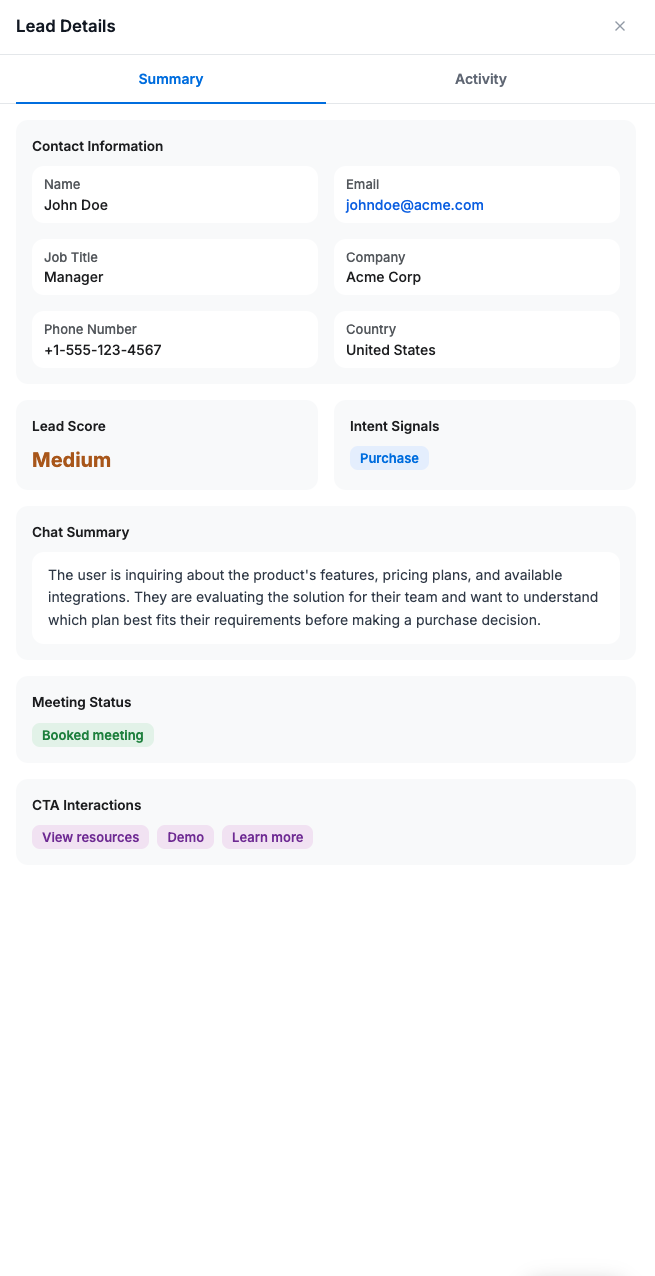
The Summary tab: contact info, lead score, intent, and CTAs.
Below is the Activity tab of the Lead Details sidecar, showing attribution and the session-by-session timeline.
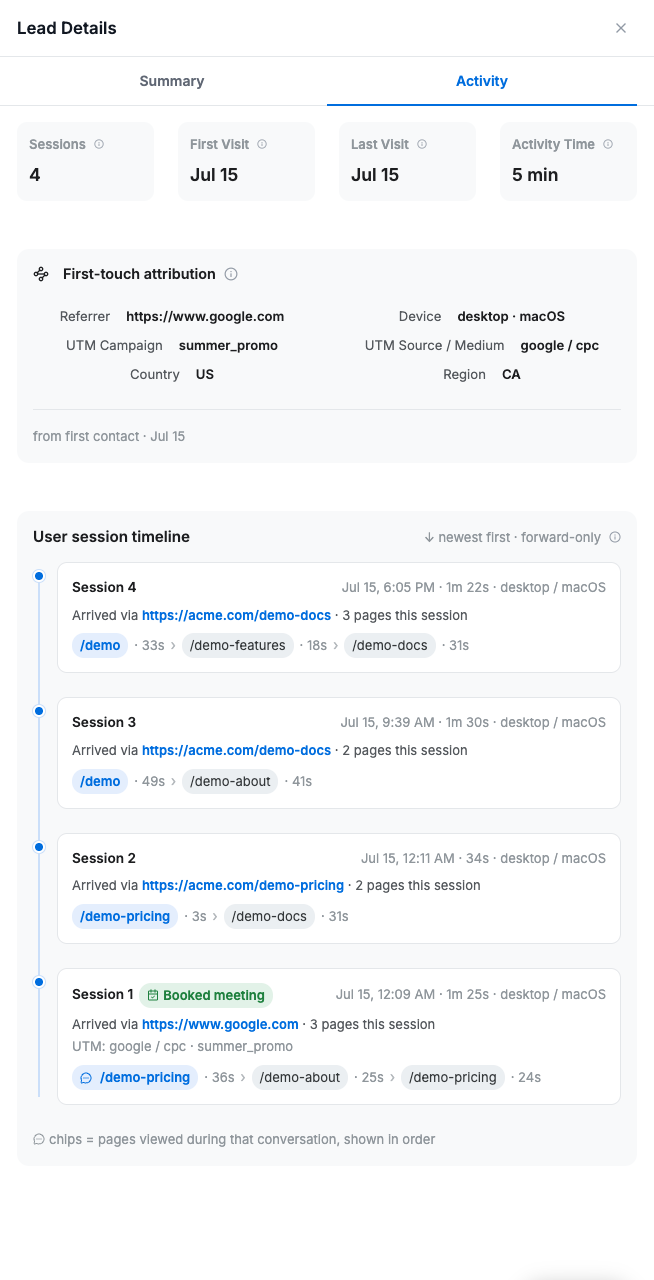
The Activity tab: attribution and session-by-session timeline.
Privacy & Data Retention
Consent-gated reporting. ZipTier begins buffering activity locally in the visitor's browser from their very first page visit, before any chat interaction. That local backlog is only ever reported here once the visitor launches the chat and consents to the privacy policy, at which point up to 48 hours of pre-consent history is surfaced, plus everything from that moment forward. Nothing is ever reported to ZipTier without that consent.
30-day retention. Activity data is retained for 30 days from collection, then automatically expired.
What's in the Activity Tab
The Activity tab is organized into three sections: summary metrics, first-touch attribution, and a session timeline.
Summary Metrics
Aggregated engagement across all sessions for the lead:
- Sessions: Total visitor sessions. A new session starts when the visitor re-engages with the site after 20 minutes of idle time. Activity from different browsers or devices is joined into a single lead via the email address, so cross-device browsing is grouped under the same account.
- First Visit: Earliest engagement timestamp for the lead. This reflects the visitor's actual first page visit, including up to 48 hours of activity buffered before they consented in a chat session, if any was captured.
- Last Visit: Most recent engagement timestamp.
- Activity Time: Sum of time spent on every page viewed, across all sessions.
First-Touch Attribution
Where and how the lead first arrived on your site (from the first tracked session):
- Referrer: Referring URL of the first visit, derived from the browser's referrer header.
- Device: Device and OS used on the first visit (e.g., desktop · macOS).
- UTM Campaign: Value from the
utm_campaignparameter on the first-visit URL. - UTM Source / Medium: Value from the
utm_sourceandutm_mediumparameters captured from the first visit. - Country: Country derived from a reverse geo-lookup of the IP address.
- Region: Region derived from the same reverse geo-lookup.
Session Timeline
The timeline lists every session the lead has had with your site, newest first. Each session card shows:
- Start time of the session.
- Total time spent in the session, shown as an exact summation of minutes and seconds (e.g., 1m 40s) rather than rounded to the nearest minute.
- Device used (browser + OS).
- Total pages browsed in the session.
- Pages browsed with time spent, shown as an ordered sequence of chips: one chip per page, with the path and duration on that page.
- Booked meeting chip: appended after the page chips if the visitor booked a meeting during that session.
Example session:
Jul 9, 10:19 PM · 21m 12s · desktop / macOS · 4 pages · arrived via acme.com/pricing.html
/pricing (26s) → /docs (16s) → /features (20m) → /about (42s)
How to Open the Sidecar
The Lead Details sidecar is available anywhere a specific lead is listed. Two entry points today:
- From Leads in the Analytics dashboard, click any row to open the sidecar, then select the Activity tab.
- From High-Scoring Leads, click any high-scoring lead to open the sidecar, then select the Activity tab.
Tip: Use the Session Timeline right before a sales call. Which pages a lead lingered on (pricing, integrations, comparison docs) often tells you what to lead with in the meeting. Combined with the chat transcript, you walk into the call with real context on the prospect's journey.