Part of Creating a Campaign, after the 3-step wizard.
Testing Your Campaign
Every ZipTier campaign has a Sandbox alongside its Live version. Use it to try the AI Assistant yourself, catch mistakes, and fix them before real prospects see the campaign. This page covers how to open the sandbox, what to test, how sandbox usage is metered, and when to run another pass.
What Is Sandbox Testing?
Creating a campaign gives you two independent versions of the AI Assistant:
- Sandbox. A private testing version for you and your team.
- Production (Live). The version your prospects see once the campaign is live.
Both share the same campaign configuration and the same knowledge base. Only the conversations are separate. Sandbox usage does not draw from your Live AI Conversation credits, and sandbox chats stay out of your production analytics so test data never skews your metrics.
Opening the Sandbox
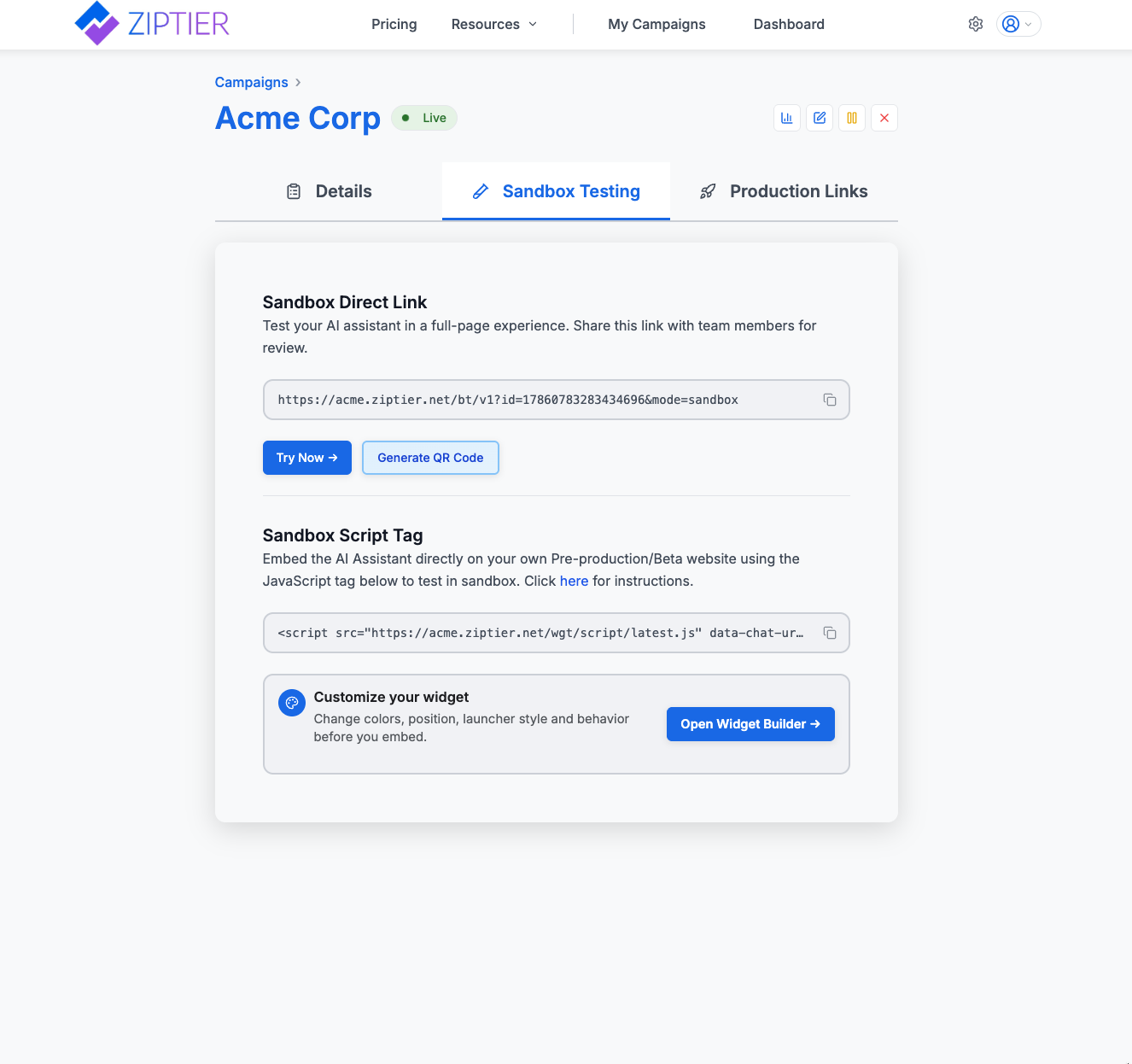
The sandbox lives on the View Campaign page. Open a campaign from My Campaigns, then switch to the Sandbox Testing tab. You'll see the same set of distribution options as the Production tab: a direct link, a JavaScript embed tag, and a QR code.
Below is the Sandbox Testing tab on the View Campaign page, showing the sandbox direct link, Try Now and Generate QR Code buttons, and the sandbox script tag.
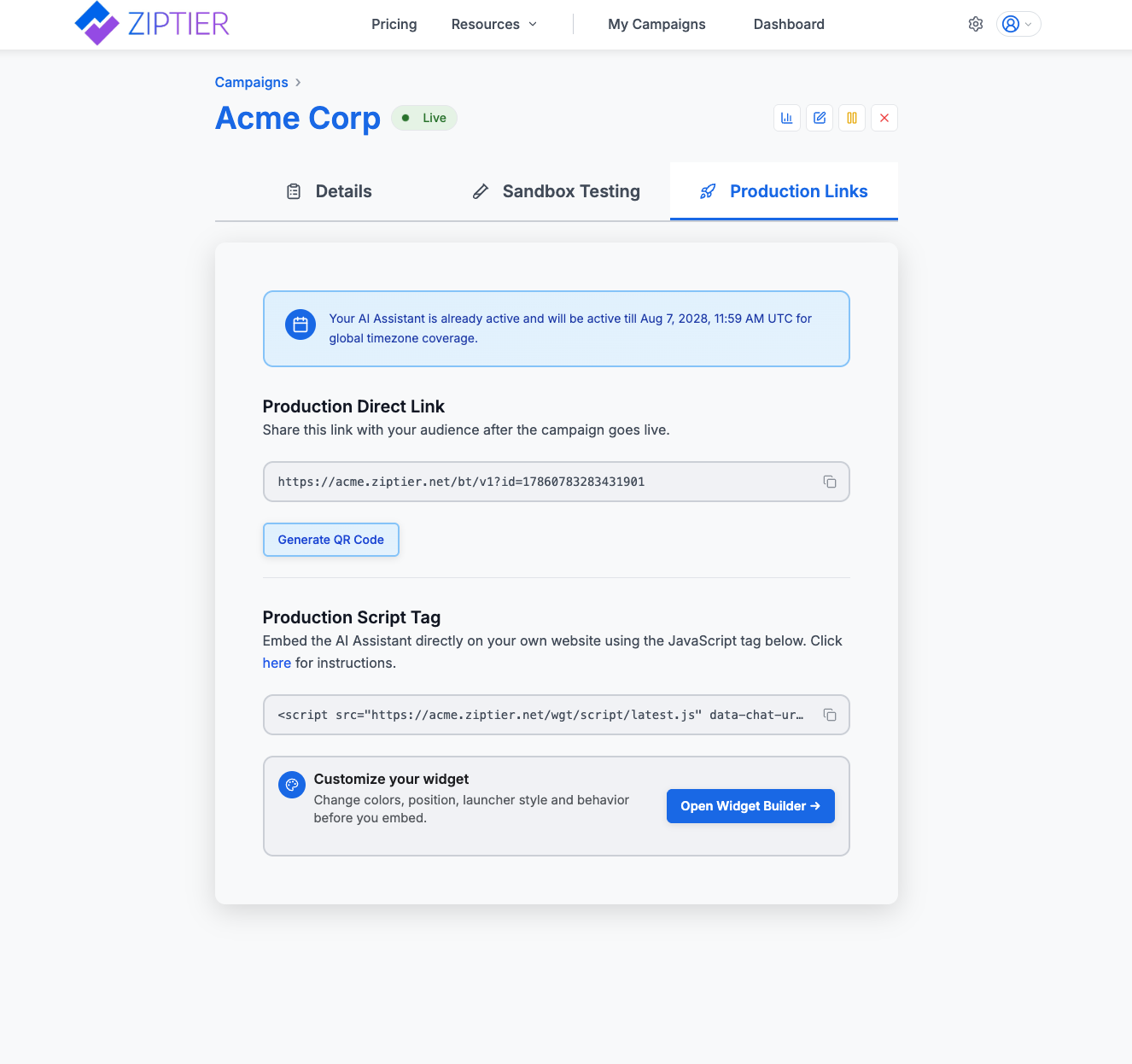
Switch to the Production Links tab to see the same tools pointed at your Live campaign instead:
Below is the Production Links tab, showing the production direct link, Generate QR Code button, and production script tag.
Note: A newly created campaign, or one that just had a large knowledge-base change, can take up to 10 minutes to be ready in the sandbox. If early answers look generic, wait a few minutes and refresh.
Sandbox Testing Tools
Sandbox Direct Link
A full-page URL that opens the AI Assistant as a standalone chat. Share it with teammates, subject-matter experts, or reviewers. The URL carries a mode=sandbox parameter so every message routes to the sandbox environment.
JavaScript Embed Tag
A snippet you can paste into a staging or beta copy of your website. Use it to check that the widget sits correctly on the page, doesn't fight your site styling, and behaves the way you expect across screen sizes.
QR Code
Scan the sandbox QR code with your phone to check the mobile experience on a real device. Simulators tend to miss keyboard behavior and touch-target sizing.
Launcher Design
Colors, position, launcher style, animation and open/close behavior all live in Launcher Design, in the AI Assistant Customization step of your campaign. Changes there apply to both the sandbox and production widgets, and take effect on your site as soon as you save: your embed script tag never needs replacing.
What to Test
Try the assistant the way a real prospect would use it. Type past the greeting, ask the questions you're worried about, and take the flows to the end. The checklists below are a starting point.
Content and knowledge base
- Ask the questions your top buyer personas are most likely to ask, and confirm each answer matches your source documents.
- Try ambiguous, incomplete, or off-topic questions. The assistant should acknowledge the gap gracefully instead of fabricating an answer.
- Focus on numbers, dates, and specific product details, where accuracy matters most.
- Confirm the assistant can pull from both uploaded documents and crawled web pages.
- Open the Resources drop-down in the chat header and make sure only the documents and web pages you set to visible are listed.
Assistant behavior
- Read the greeting message as a first-time visitor and check whether the tone matches your brand.
- Click each kick-off question and make sure the responses are still relevant.
- Push a conversation past 10–15 messages to see how context holds up.
Lead capture and meeting booking
- Ask an intent-heavy question (for example, “can I get a demo?”) and confirm the lead capture form triggers.
- Verify that required and optional fields match what your sales team needs downstream.
- If in-chat meeting booking is enabled, book a meeting end to end to confirm your Calendly (or equivalent) scheduler is wired correctly.
- Click your CTAs and confirm they land on the right destination pages.
Deployment and UX
- Embed the sandbox JS tag on a staging page and confirm the widget renders correctly in context.
- Scan the sandbox QR code and walk through the mobile experience.
- Test in Chrome, Safari, and Firefox, on both desktop and mobile.
- Open the widget in an incognito window to rule out browser cache issues.
Tip: Get a colleague outside your campaign team to run through the sandbox. Fresh eyes catch confusing phrasing and unnatural flows that the campaign author has stopped noticing.
Sandbox vs. Live
The sandbox and Live campaigns are functionally identical. A few things are handled separately so testing doesn't pollute your production numbers.
| Aspect | Sandbox | Live (Production) |
|---|---|---|
| Campaign states supported | Preview, Live, or Paused | Live only |
| Audience | You and your team | Your real prospects and visitors |
| Credit pool | Sandbox chat messages and sandbox conversations, per plan | Live AI Conversations and live chat messages |
| Extra conversation top-ups | Not eligible. Upgrade the plan for more sandbox capacity. | Extra conversation purchases apply here |
| Analytics reporting | Not available. Sandbox activity is excluded from analytics reports. | Included in all analytics reports |
| Distribution | Share internally. Sandbox links are not intended for public use. | Publish to your website, marketing emails, campaigns, and events |
Sandbox Limits by Plan
Each plan includes a monthly allowance of sandbox conversations and sandbox chat messages. They're independent of your Live allowances and reset with each billing cycle.
| Metric | Free | Starter | Pro | Premium |
|---|---|---|---|---|
| Sandbox conversations | 10 | 20 | 50 | 100 |
| Sandbox chat messages | Up to 100 | Up to 200 | Up to 500 | Up to 1,000 |
For a full breakdown of what counts as a conversation and how messages are metered, see Subscription Plans.
Heads up: If you use up your monthly sandbox conversations, new sandbox chats are blocked until the next billing cycle. Sandbox capacity can't be topped up: extra conversation purchases apply to Live conversations only. If you need more sandbox room, upgrade the plan.
When to Retest
Testing isn't only a pre-launch step. Retest in the sandbox whenever any of the following change:
- Documents or web pages in the knowledge base.
- The greeting message, kick-off questions, tone, CTAs, or contact information.
- The lead capture form: added, removed, or newly required fields.
- Scheduler or CRM integration settings, such as a new Calendly link or a different HubSpot pipeline.
- Questions surfaced by the Knowledge Base Gaps analytics panel. Re-ask them in sandbox after you add content, and confirm the assistant now answers correctly.
Best Practices
- Test before every promotion. Content that was accurate last month may be stale after a knowledge base update.
- Check mobile on a real device via the QR code. Simulators miss keyboard and touch-target quirks.
- Embed on a staging page, not just the direct link. The widget behaves slightly differently as a standalone page versus embedded.
- Ask the boring questions too. Pricing, timelines, refund policies, and contact details are where accuracy matters most.
- Validate in sandbox first, then publish to Live. Edits flow to both once published, so it's cheap to check first.
Tip: Build a short reusable test script of 8–10 questions that cover content, lead capture, and edge cases. Run it every time you update a campaign. Running the same checks each time is how you notice regressions.