Live Chat
Some visitor questions the AI cannot answer, and some visitors simply want to talk to a person. Live Chat lets visitors chat with your team directly from the ZipTier AI Assistant, and lets your team reply from Slack, the tool they already use all day. The visitor gets your reply in the chat and by email, so a warm lead is not lost because nobody was watching a dashboard.
Visitors start a chat with the Chat with our team button in the AI Assistant. Live Chat is available on paid plans (Starter, Pro and Premium).
How It Helps
- No dead ends. When a visitor wants to talk to a person, they have a clear next step instead of leaving.
- Your team stays in Slack. Nobody has to log in to ZipTier to answer a visitor.
- Full context. Each Slack post includes the visitor's message, their contact details, their lead score and the conversation so far, so your team does not have to ask again.
- Visitors hear back. Replies reach the visitor in the chat and by email.
What Your Team Sees in Slack
When a visitor sends a message, ZipTier posts it to the Slack channel you chose. The post shows who the visitor is, their lead score and intent, their message, and the pages they viewed. Anyone on your team can reply in the thread under the post, and the visitor receives that reply. To discuss something internally, start a reply with note: and it is not sent to the visitor.
Before You Start
- A paid ZipTier plan.
- A Slack workspace, and a channel where visitor messages should be posted.
- You'll need permission to install apps in your Slack workspace.
- Optional: a scheduling link in Booking settings, if you want to offer "Book a meeting" next to "Send message".
Connecting Slack
Step 1: Open Live Chat in Settings
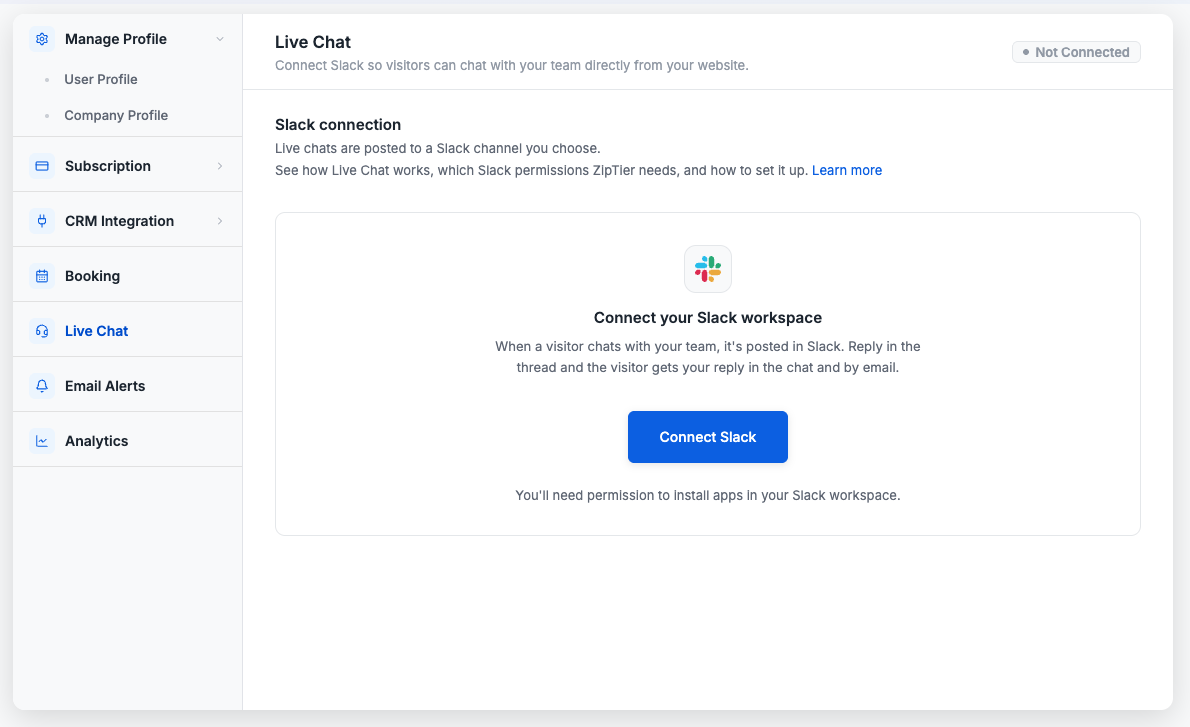
Click your profile avatar in the top-right corner of any page and select Settings. In the Settings sidebar, click Live Chat, then Connect Slack.
Below is the Live Chat page in Settings with the Connect Slack button.
Step 2: Approve ZipTier in Slack
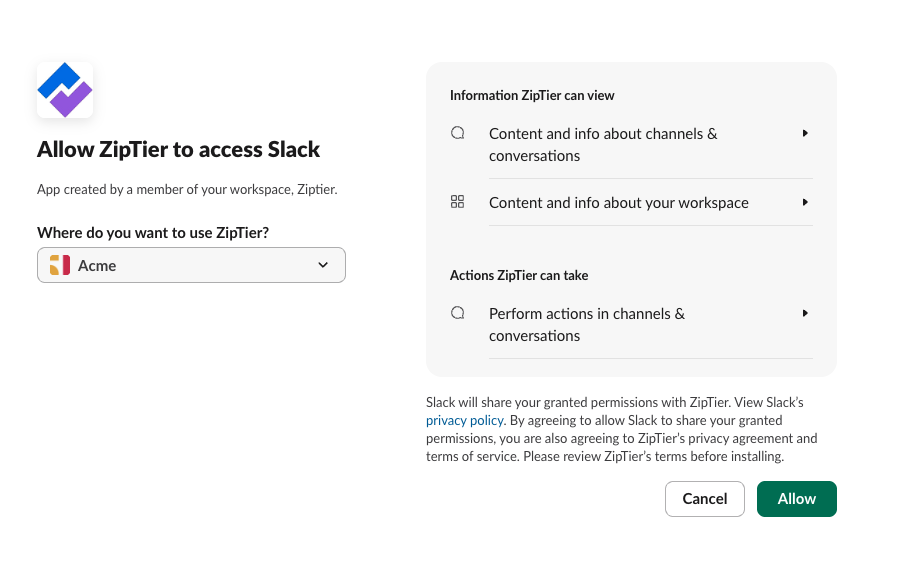
You are taken to Slack. Choose your workspace, review the permissions listed below, and click Allow.
Below is Slack's screen where you review the permissions and allow ZipTier.
Step 3: Choose a Channel
Back on the Live Chat page, pick the Slack channel that should receive visitor messages from the Slack channel dropdown, then click Save. You can change the channel at any time.
Private Channels
ZipTier joins public channels for you. A private channel does not appear in the list until ZipTier has been added to it. In Slack, open the private channel and type /invite @ZipTier. Then open the channel list in ZipTier again.
Permissions ZipTier Asks For
Slack shows this list when you approve the connection.
| Permission | Why It's Needed |
|---|---|
View basic information about public channelschannels:read | Lists your public channels so you can choose where messages go. |
View basic information about private channels ZipTier has been added togroups:read | Lists the private channels ZipTier has been invited to. |
Join public channelschannels:join | Lets ZipTier join the public channel you choose, so you do not have to add it yourself. |
Send messages as ZipTierchat:write | Posts visitor messages to your channel. |
Send messages with a customized username and avatarchat:write.customize | Lets posts appear with a custom name and icon. |
View messages in public channels ZipTier has been added tochannels:history | Reads your team's thread replies in public channels so they reach the visitor. |
View messages in private channels ZipTier has been added togroups:history | Reads your team's thread replies in private channels so they reach the visitor. |
View people in the workspaceusers:read | Shows which teammate replied. |
View email addresses of people in the workspaceusers:read.email | Matches a Slack user to a teammate's email address. |
Live Chat Settings
These settings control what visitors see after they message your team.
Below is the Live Chat page once Slack is connected, showing the channel and the Live Chat settings.
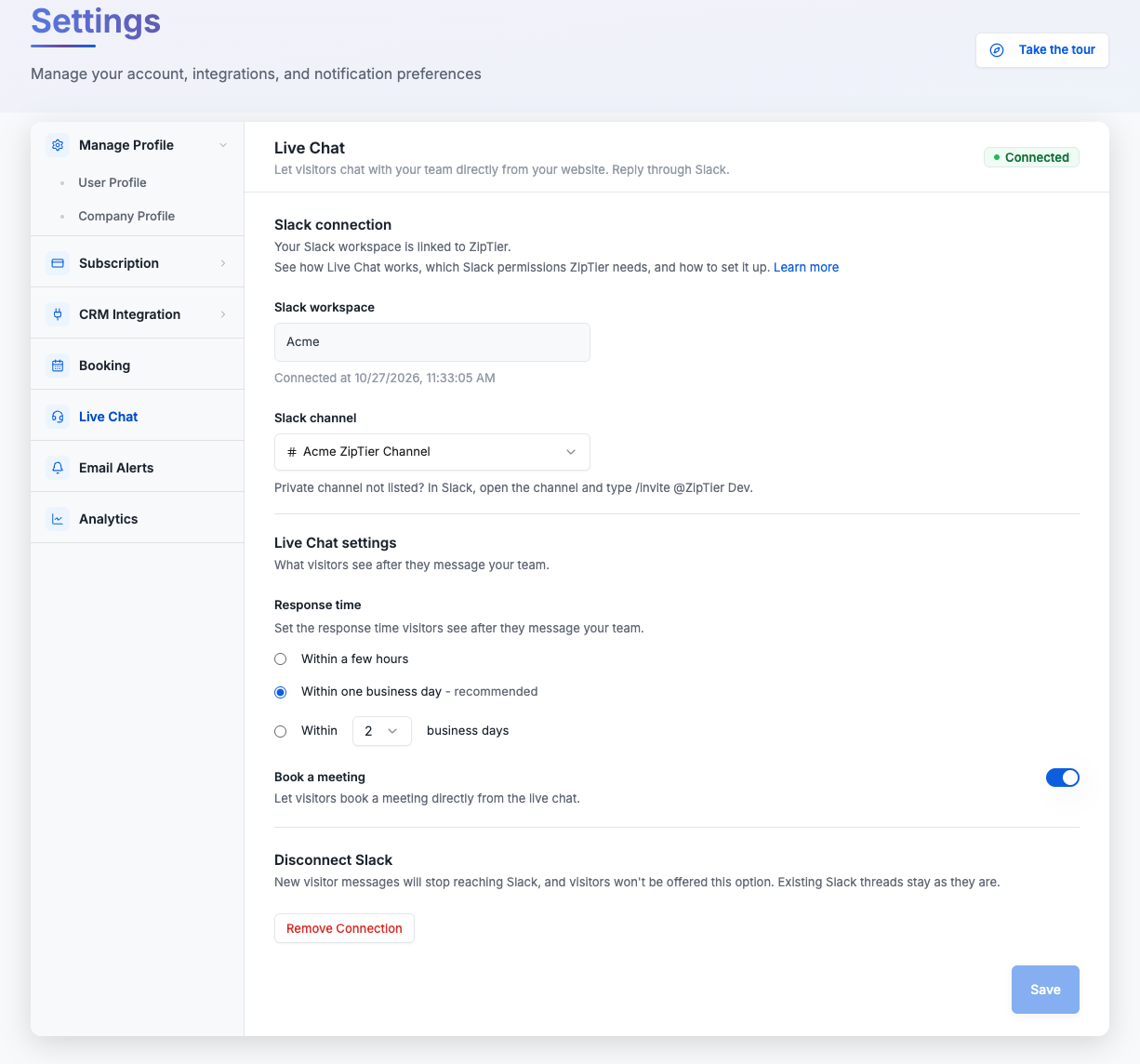
- Response promise: the reply time visitors are told to expect. Choose within a few hours, within 1 business day (recommended), or within 2 to 5 business days. Pick a time your team can keep.
- Offer "Book a meeting": shows a booking button next to "Send message" in the Chat with our team window. It needs a scheduling link in Booking settings.
Turn It On For a Campaign
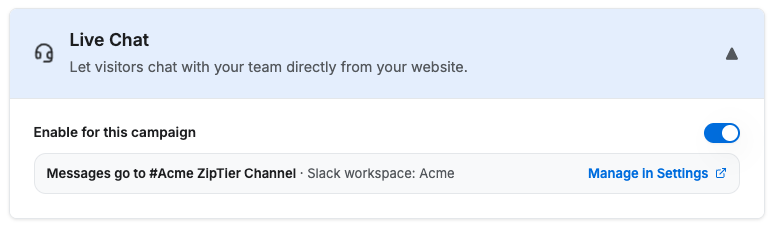
Connecting Slack does not turn Live Chat on by itself. In a campaign's Step 2: AI Assistant Customization, open the Live Chat section, switch it on, and save the campaign. Each campaign is controlled on its own, so you can use it only where a person should be available.
Below is the Live Chat section in Step 2 of campaign creation.
Disconnecting Slack
Click Remove Connection on the Live Chat page. ZipTier revokes its access in Slack and stops sending messages, and visitors are no longer offered the option. Your Live Chat settings are kept, so reconnecting only needs a new channel. You can also remove the ZipTier app from inside Slack, and ZipTier notices the next time it needs the connection.
ZipTier stores only your workspace and channel names. The Slack access token is encrypted and never shown in the product.
Troubleshooting
"Not authorized to install ZipTier" in Slack
- Give you permission to install apps, or
- Perform the Connect Slack step themselves from the Live Chat page
Not receiving messages in Slack
- Check that Live Chat is switched on for that campaign, in Step 2: AI Assistant Customization.
- Check the Slack channel selected on the Live Chat page is the one you are watching.
- For a private channel, confirm ZipTier is still in it; if it was removed, re-invite it with
/invite @ZipTierin Slack.
Connection shows disconnected after it was previously connected
- Someone may have removed the ZipTier app from Slack, or a workspace admin revoked its access.
- Click Connect Slack again on the Live Chat page to reauthorize. Your Live Chat settings are kept, so you only need to pick the channel again.