In-chat Meeting Booking
In-chat Meeting Booking lets visitors schedule a meeting with your sales team without ever leaving the conversation. When the AI assistant surfaces a Book a meeting button, your scheduler opens right inside the chat panel. They pick a time, confirm, and they are booked. No new tabs, no redirects, and no lost momentum.
This collapses the gap between "I am interested" and "I am on your calendar" from minutes to seconds, exactly when a high-intent prospect is most engaged. ZipTier supports both Calendly and Google Calendar scheduling links, with Calendly providing the most complete experience.
Choosing a Scheduling Provider
ZipTier supports two scheduling providers. We recommend Calendly for the most complete in-chat experience.
| Feature | Calendly (Recommended) | Google Calendar |
|---|---|---|
| Opens scheduler in-chat | Yes | Yes |
| Prefills visitor name and email | Yes | May prefill booking details for signed-in Google users |
| Automatic booking detection & reporting | Yes — the conversation is marked as Booked and flows into analytics | Confirmations come directly from Google |
| Booking email | Visitors may book with a different email address than the one used during chat | |
| Setup required | Paste your Calendly link | Paste your appointment page link |
Before You Start: Setting Up Calendly
ZipTier hosts your existing Calendly scheduler in-chat, so your Calendly account does the heavy lifting: availability, conflict checks, time zones, and confirmation emails. Complete these steps in Calendly before connecting it to ZipTier.
| Step | What you do | Details |
|---|---|---|
| 1 | Have a working Calendly account ready | Register a Calendly account and set it up before integrating with ZipTier. |
| 2 | Connect your Google or Outlook calendar inside Calendly | Calendly needs a connected real calendar so it can check for conflicts and place booked meetings on the correct calendar. |
| 3 | Create the meeting type you want ZipTier to book | ZipTier books against a specific Calendly event type, such as "30-min Demo" or "15-min Qualification Call". |
| 4 | Decide whether the meeting is personal or team-based | For one person, use an individual event. To distribute across sales reps, use a team event such as round robin. |
| 5 | Configure the event type in Calendly | Set duration, meeting location, buffers, notice period, working hours, intake questions, and confirmation behavior. |
Connecting Your Scheduler to ZipTier
Once your scheduling link is ready, connect it in ZipTier. This sets your global (company-wide) booking defaults, which every campaign inherits unless you override them.
Step 1: Open Booking Settings
Click your profile avatar in the top-right corner of any page and select Settings. In the Settings sidebar, open the Booking tab.
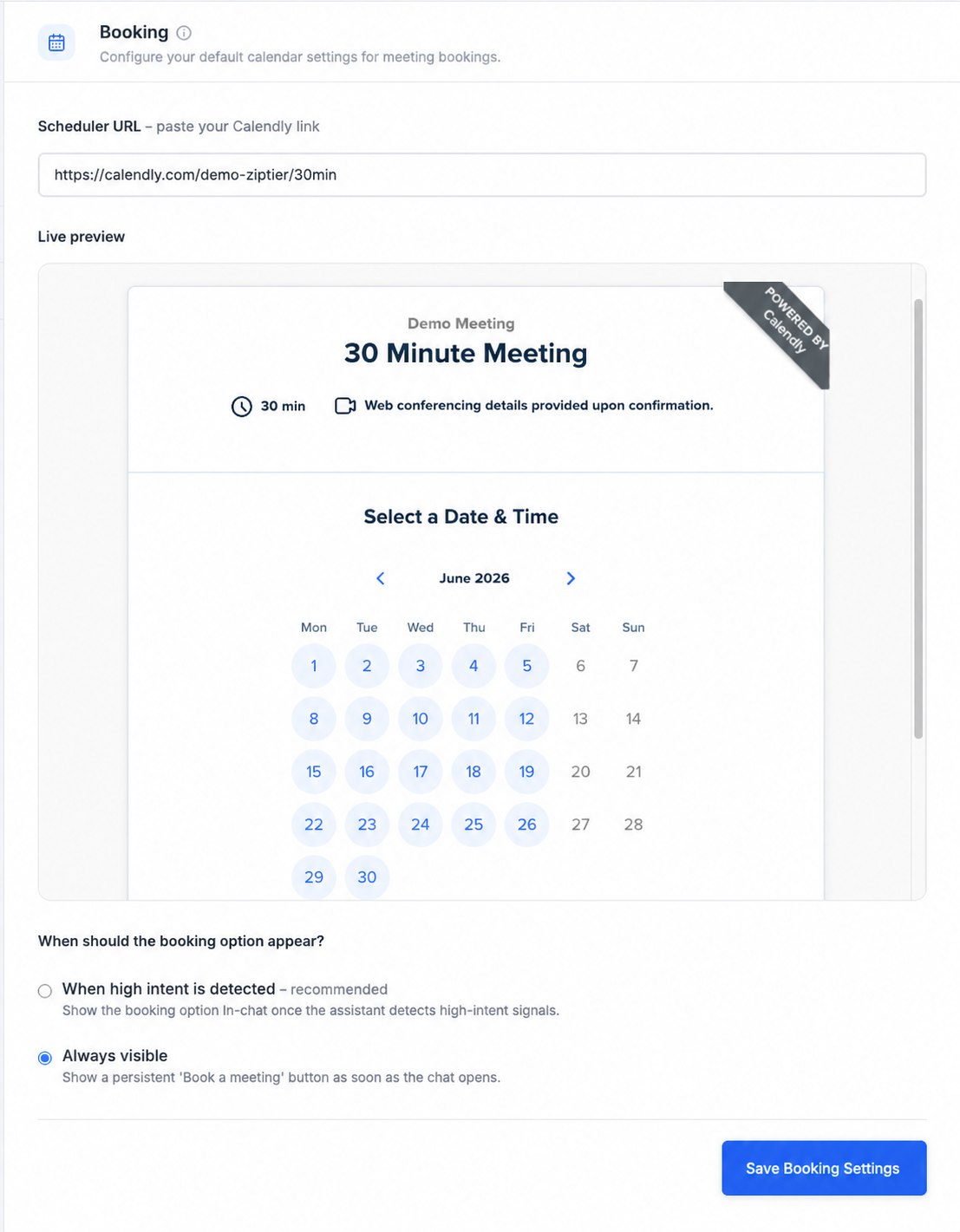
Below is the Booking tab in Settings, showing the provider selection, Scheduler URL field, and live preview.
Step 2: Select Your Provider
Under Scheduling provider, choose Calendly (recommended) or Google Calendar.
Step 3: Paste Your Scheduler URL
Paste your scheduling link into the Scheduler URL field. ZipTier detects the link and loads a live preview of the meeting page so you can confirm it is the right link before saving.
- Calendly: Use a link in the format
https://calendly.com/your-team/30min. - Google Calendar: Use a link in the format
https://calendar.google.com/calendar/appointments/schedules/....
Step 4: Choose When the Booking Option Appears
Under When should the booking option appear?, pick how the Book a meeting button behaves in chat.
| Option | Behavior |
|---|---|
| When high-intent is detected (recommended) | The booking option appears in-chat only once the assistant detects high-intent signals. This keeps conversation flow focused and offers meetings to purchase-ready prospects. |
| Always visible | A persistent Book a meeting button is shown above the chat message box as soon as the chat opens, so visitors can book at any time. |
Step 5: Save
Click Save Booking Settings. These settings now apply across all campaigns by default.
Campaign-Level Configuration
Global settings are your default, but every campaign can decide how booking behaves. Configure this in Step 2 of the create campaign wizard, under Chat customization, in the Book meetings from chat section.
Below is the campaign wizard's Book meetings from chat section, showing the enable toggle and the default vs. override options.
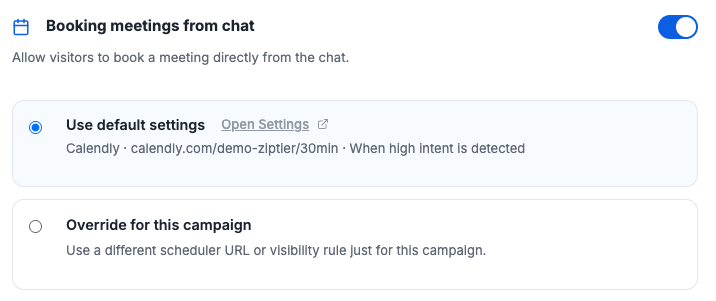
Use the toggle at the top to turn booking on or off for the campaign. When booking is on, choose one of the options below.
| Option | What it does |
|---|---|
| Use default settings | The campaign inherits your global scheduler URL and visibility rule from Settings > Booking. The current default is shown inline so you know exactly what the campaign will use. |
| Override for this campaign | Use a different scheduler URL or visibility rule just for this campaign. Use this when a campaign needs a dedicated calendar, such as a webinar staffed by a specific round-robin team. |
To switch off booking for a single campaign, turn off the Book meetings from chat toggle. The rest of the campaign is unaffected.
What Visitors Experience in Chat
How the booking option appears depends on the visibility rule you choose. When a visitor opens the scheduler, ZipTier prefills their name and email (for Calendly) so they only need to pick a time.
Case 1: Booking Only When High Intent Is Detected
When you choose When high-intent is detected, the assistant waits until it identifies a purchase-ready visitor before offering a meeting. What happens next depends on whether the visitor email is already known.
Email already captured
- The assistant offers to book a meeting and shows the Book a meeting button.
- If the visitor clicks the button, ZipTier opens the scheduler inside chat.
- If the visitor ignores the button and asks another question, ZipTier removes the button from that message, adds a persistent Book meeting link above the message box for the rest of the session, and continues the conversation.
Email not yet captured
- If the visitor provides their email, the assistant thanks them and shows the booking button. Clicking launches the scheduler.
- If the visitor declines email and clicks Skip, the assistant still offers booking. The scheduler opens with name prefilled only (Calendly).
Case 2: Always Visible
When you choose Always visible, the Book a meeting button is displayed above the message box as soon as chat opens and remains there for the full session. Visitors can book at any point without waiting for an intent prompt.
Prefill Behavior
For Calendly, ZipTier passes what it already knows about the visitor into the scheduler so they do not have to re-type details.
- Name and email known: both are prefilled into the Calendly form.
- Only name known: name is prefilled and the visitor enters email in the scheduler.
For Google Calendar, visitors enter their details directly in the Google scheduling page. Google may prefill these details for visitors who are signed in to their Google account.
Calendly handles final confirmation, calendar invites, and time-zone conversion. Your sales team is notified through Calendly's built-in integrations such as email and Slack.
Best Practices
- Start with high-intent visibility: Reserve meeting offers for purchase-ready prospects to keep conversations natural. Switch to Always visible for campaigns where booking is the primary goal.
- Use dedicated event types when needed: Point specialized campaigns to dedicated round-robin teams with campaign override.
- Confirm the live preview before saving: The preview in Settings quickly catches stale or incorrect scheduler URLs.
- Use a paid Calendly plan for branded demos: This removes the "Powered by Calendly" label from the in-chat scheduler.
- Keep Calendly availability current: ZipTier hosts your live Calendly scheduler, so working hours, buffers, and notice periods are exactly what visitors see.
Frequently Asked Questions
Which schedulers are supported?
ZipTier supports Calendly and Google Calendar appointment scheduling pages. We recommend Calendly for the smoothest scheduling and reporting experience.
Do I need to set this up for every campaign?
No. Configure your scheduler once under Settings > Booking and each campaign inherits it by default. Override or disable booking only for campaigns that need different behavior.
What happens if a visitor does not share their email?
Booking still works. For Calendly, ZipTier launches the scheduler with name prefilled, and the visitor enters email directly in Calendly when confirming the meeting. For Google Calendar, the visitor enters all details in the Google scheduling page.
Does the visitor leave chat to book?
No. The scheduler is hosted inside chat. The visitor picks a time and confirms without opening a new tab.
Where do booked meetings show up?
Confirmed meetings appear on the calendar connected to your scheduling account, and the provider sends invites and reminders. ZipTier launches and prefills the scheduler (where supported), while the scheduling provider owns the booking record.