Part of Creating a Campaign, after the 3-step wizard.
Post Campaign Creation
Once you click Create Campaign, ZipTier confirms the campaign was created and hands you two sets of links (Sandbox Testing and Production Links) via tabs on the confirmation screen. Sandbox is selected by default so you test before anyone else sees the live version.
Below is the confirmation screen right after campaign creation, showing the Sandbox Testing tab with the sandbox direct link, Try Now and Generate QR Code buttons, and the sandbox script tag.
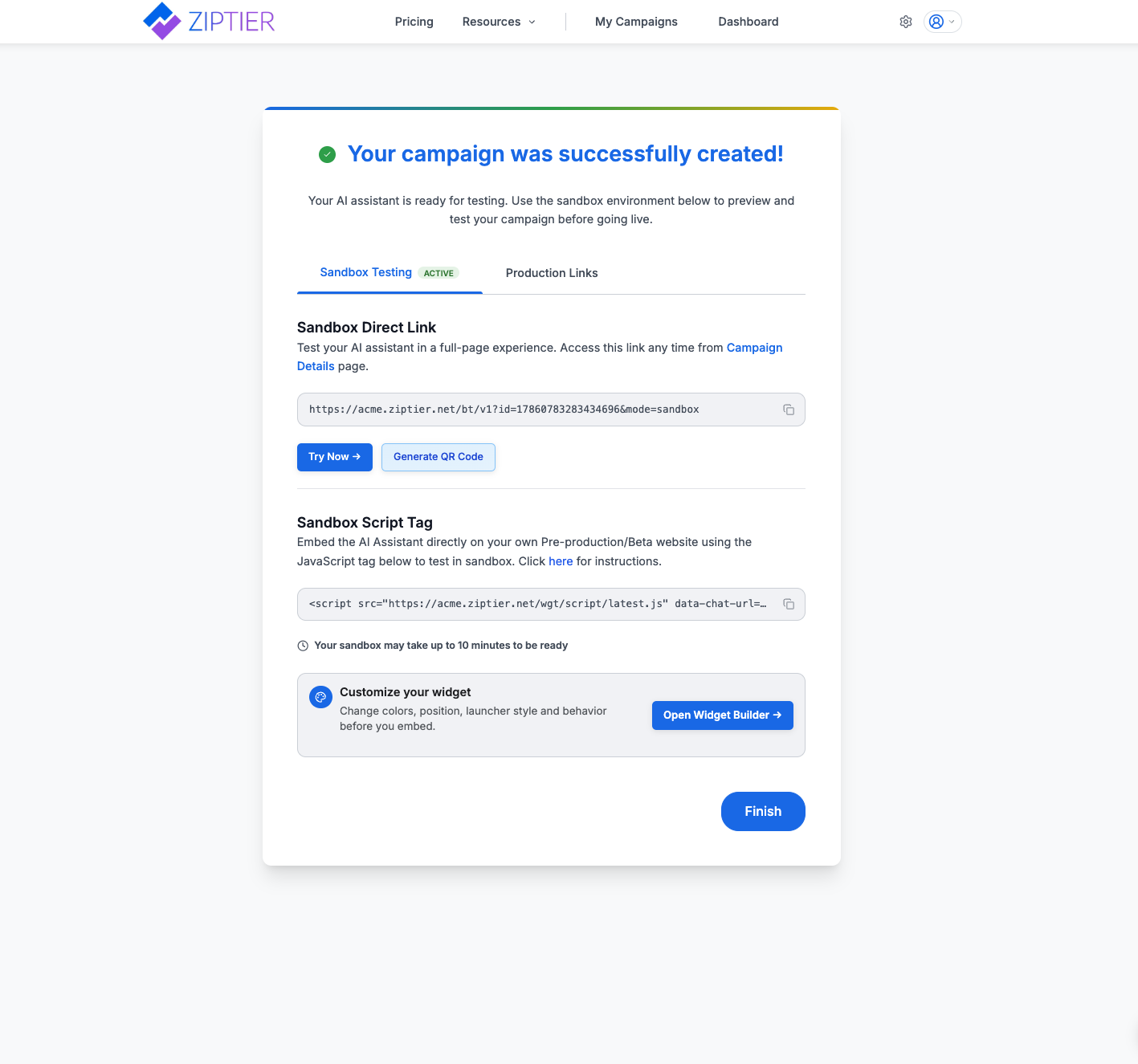
- Sandbox Direct Link: Opens the AI Assistant as a full-page experience for testing.
- Try Now: Opens the sandbox link immediately in a new tab.
- Sandbox Script Tag: Embed on a pre-production or beta site to test the widget in context.
⏱️ Sandbox warm-up: Your sandbox may take up to 10 minutes to be ready after creation.
Once you're satisfied with sandbox testing, switch to the Production Links tab.
Below is the same confirmation screen with the Production Links tab open, showing the production direct link, Generate QR Code button, and production script tag.
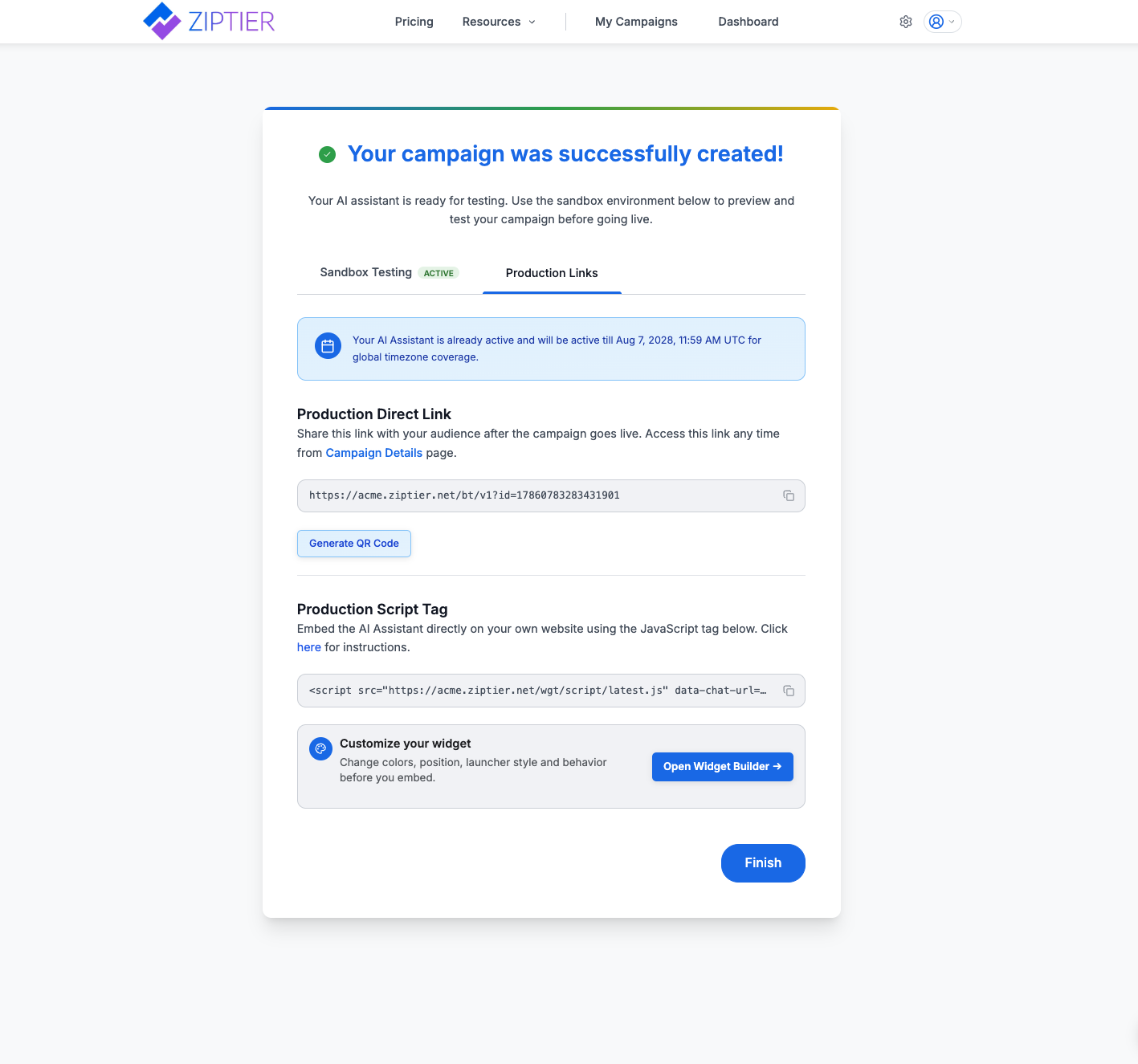
- Production Direct Link: Share with your audience once the campaign is live. Also available anytime from the Campaign Details page.
- Generate QR Code: Produces a scannable QR code for print, signage, or event materials.
- Production Script Tag: Embed the AI Assistant directly on your live website.
Tip: Colors, position, launcher style and animation are set in Launcher Design, in the AI Assistant Customization step, not on the script tag. You can change them any time and your embedded tag stays the same.
Click Finish to land on your new campaign's details page.
What's Next
With your links in hand, decide how you want to put the AI Assistant in front of visitors:
- Want a full page? Share the Sandbox or Production Direct Link as its own page. See Standalone Page.
- Embedding on your website? Use the JavaScript embed script tag. See Website Embed.
- Want to customize how it looks? Use Launcher Design in the AI Assistant Customization step to tune colors, position, launcher style and animation.
- Need advanced customization? Use Custom Triggers to launch the widget from your own buttons, cards, or page elements.
← Step 3: Campaign Knowledge Base (KB) | Next: Testing Your Campaign →