Billing & Invoices
The Billing & Invoices page lets you manage your payment method, view your billing contact, check upcoming charges, and access your full invoice history. Navigate to Settings > Subscription > Billing & Invoices to access this page.
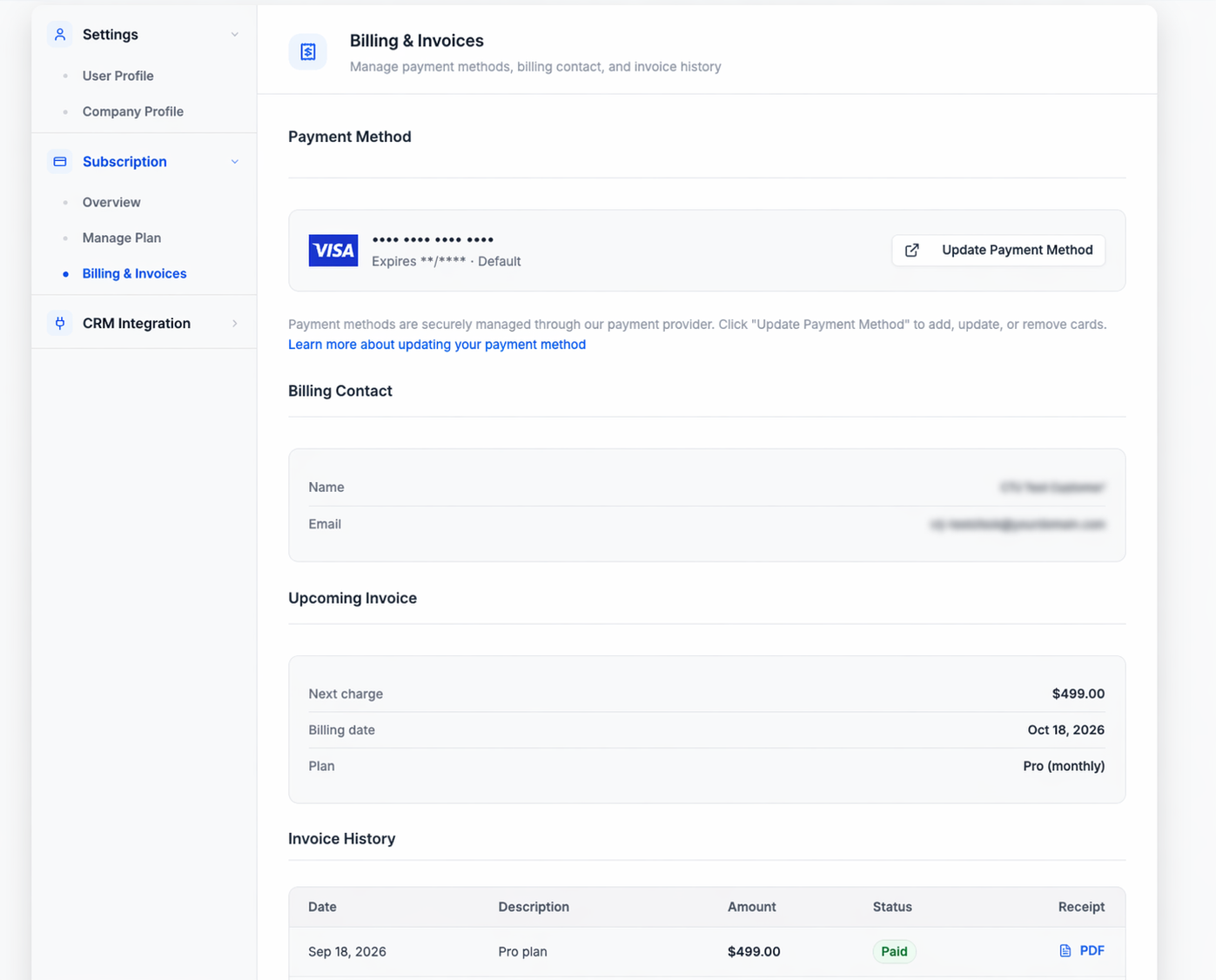
Below is the Billing & Invoices page, showing the payment method, billing contact, upcoming invoice, and invoice history sections.
How Billing Works
- All paid plans are billed monthly through Stripe.
- Your AI Conversation allowance and other usage limits replenish automatically at the start of each billing cycle.
- You can upgrade at any time: upgrades take effect immediately, your billing cycle resets, and any unused conversations from your prior paid plan (except for the Free plan) carry over until the end of the new billing cycle.
- You can downgrade or cancel at any time: changes take effect at the end of your current billing cycle.
- ZipTier supports credit and debit cards (Visa, Mastercard, Amex, etc.) and Link.
- You can choose to pay in USD or your local currency. Exchange rates and fees from your bank may apply for non-USD payments.
Payment Method
This section displays your current payment method on file, including the card type, last four digits, and expiration date.
- Click Update Payment Method to add, change, or remove a payment method. This opens a secure Stripe-hosted portal where you can manage your payment details.
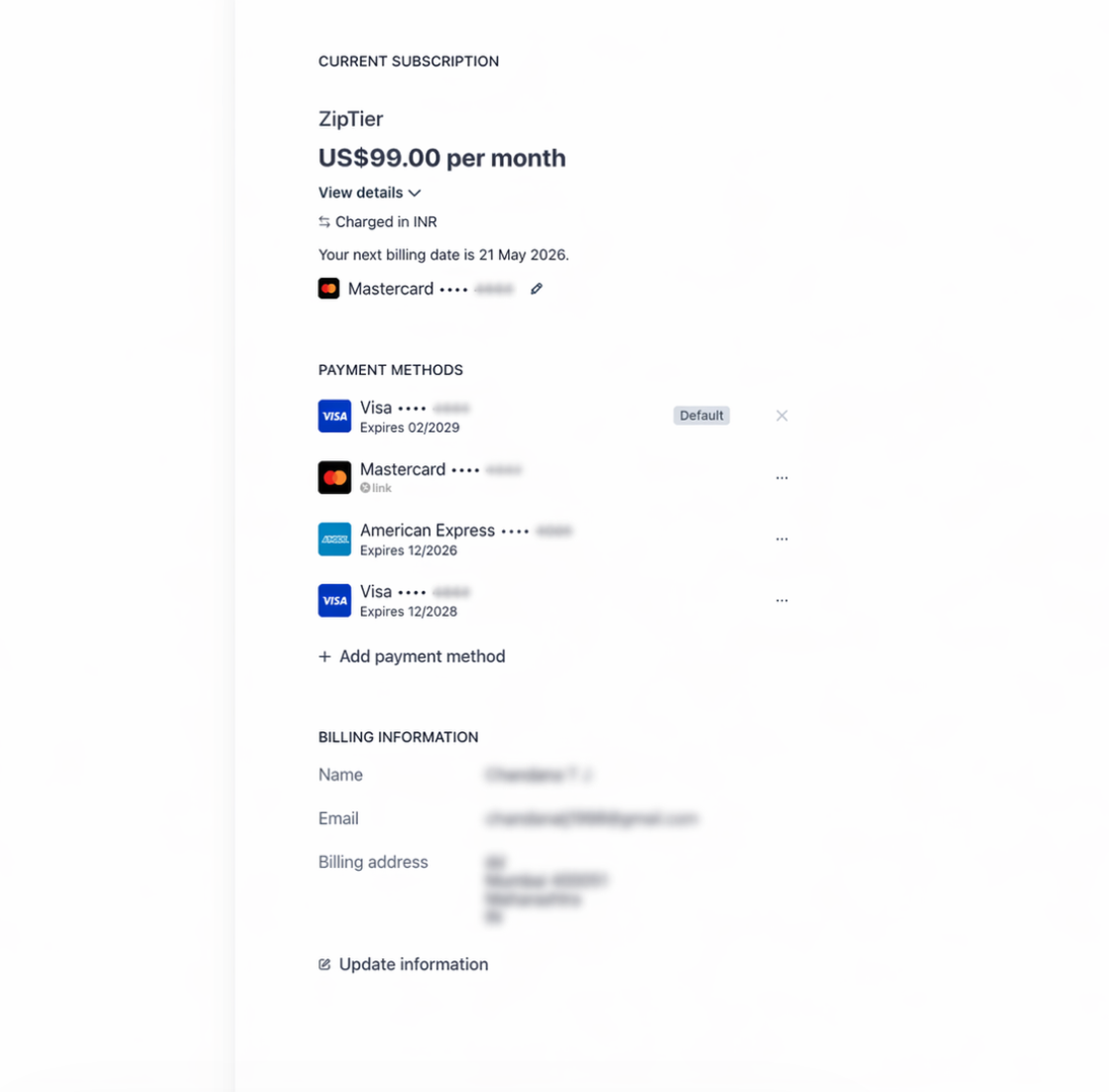
- Important: After updating your payment method in the PAYMENT METHODS section, you must also update the payment method attached to your subscription. In the SUBSCRIPTION section, click the Edit button next to your subscription and select the new payment method to apply it to future charges.
- If you only update the PAYMENT METHODS section but do not update the SUBSCRIPTION section, your next invoice will still be charged to the old payment method.
- Payment methods are securely managed through Stripe: ZipTier never stores your payment information directly.
Below is the Stripe billing portal where you update your payment method and the subscription's payment method.
Billing Contact
The billing contact section shows the name and email address associated with your billing account. Invoices and payment notifications from Stripe are sent to this email address.
Upcoming Invoice
This section shows your next scheduled charge, including:
- Next charge: The amount that will be billed.
- Billing date: When the charge will be processed.
- Plan: The plan name and billing frequency (e.g., "Starter (monthly)").
Invoice History
A complete record of all past invoices is displayed in a table with the following columns:
| Column | Description |
|---|---|
| Date | The date the invoice was generated. |
| Description | The plan name associated with the charge. |
| Amount | The total amount charged. |
| Status | Payment status (e.g., Paid, Pending, Failed). |
| Receipt | Click PDF to download a PDF receipt for your records. |
Failed Payments
If ZipTier is unable to charge your payment method at the start of a new billing cycle, the following process occurs:
- Notification: Stripe sends you an email notification asking you to update your payment method.
- Automatic retries: Stripe automatically retries charging your payment method multiple times over the following week.
- Subscription cancellation: If payment cannot be collected after approximately one week of retries, your subscription is automatically canceled. You will no longer be able to create new campaigns, all existing campaigns will be set to a Closed state, and your account enters a read-only state for 90 days before data is permanently removed.
Tip: To avoid service interruptions, make sure your payment method is up to date. You can update it anytime by clicking Update Payment Method on this page.