Part of WordPress Integration: 1 of 4.
Add the Widget Script to footer.php
Adding the script to footer.php makes the floating launcher button appear on every page of your site.
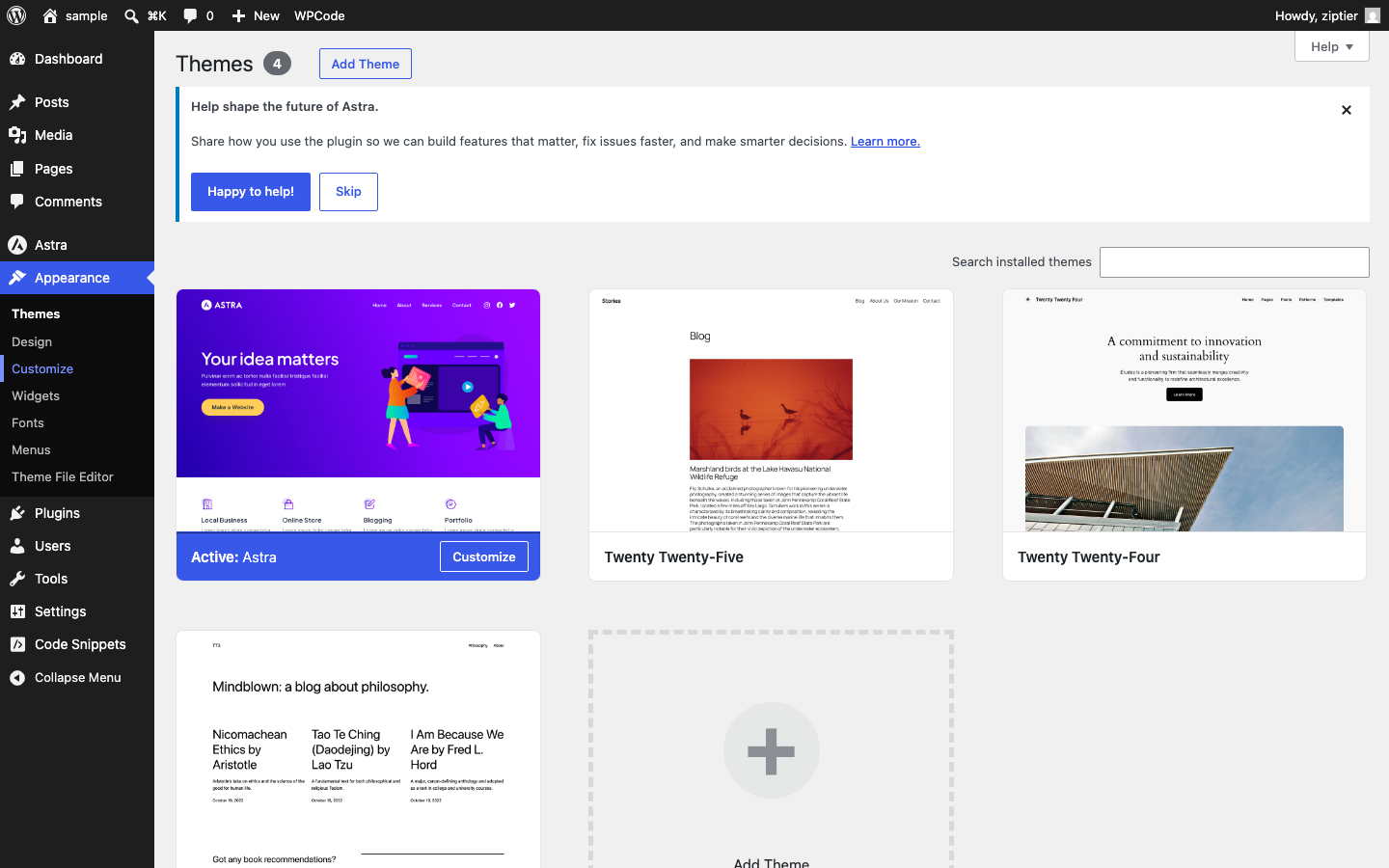
- Go to Appearance > Theme File Editor.
Below is the WordPress admin sidebar with the Theme File Editor link under Appearance.
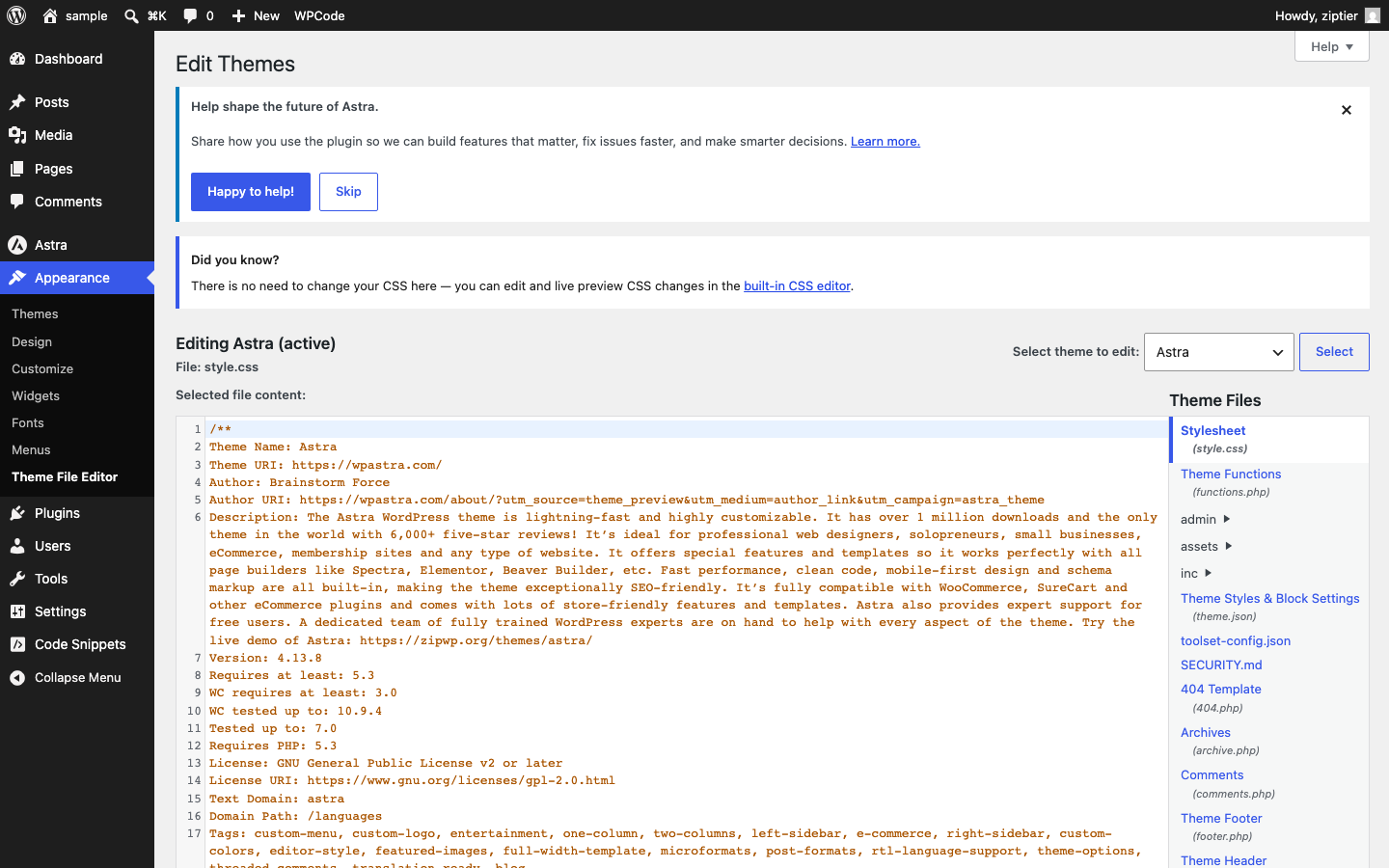
- In the file list on the right, click Theme Footer (footer.php).
Below is the Theme File Editor page with the footer.php link in the file list.
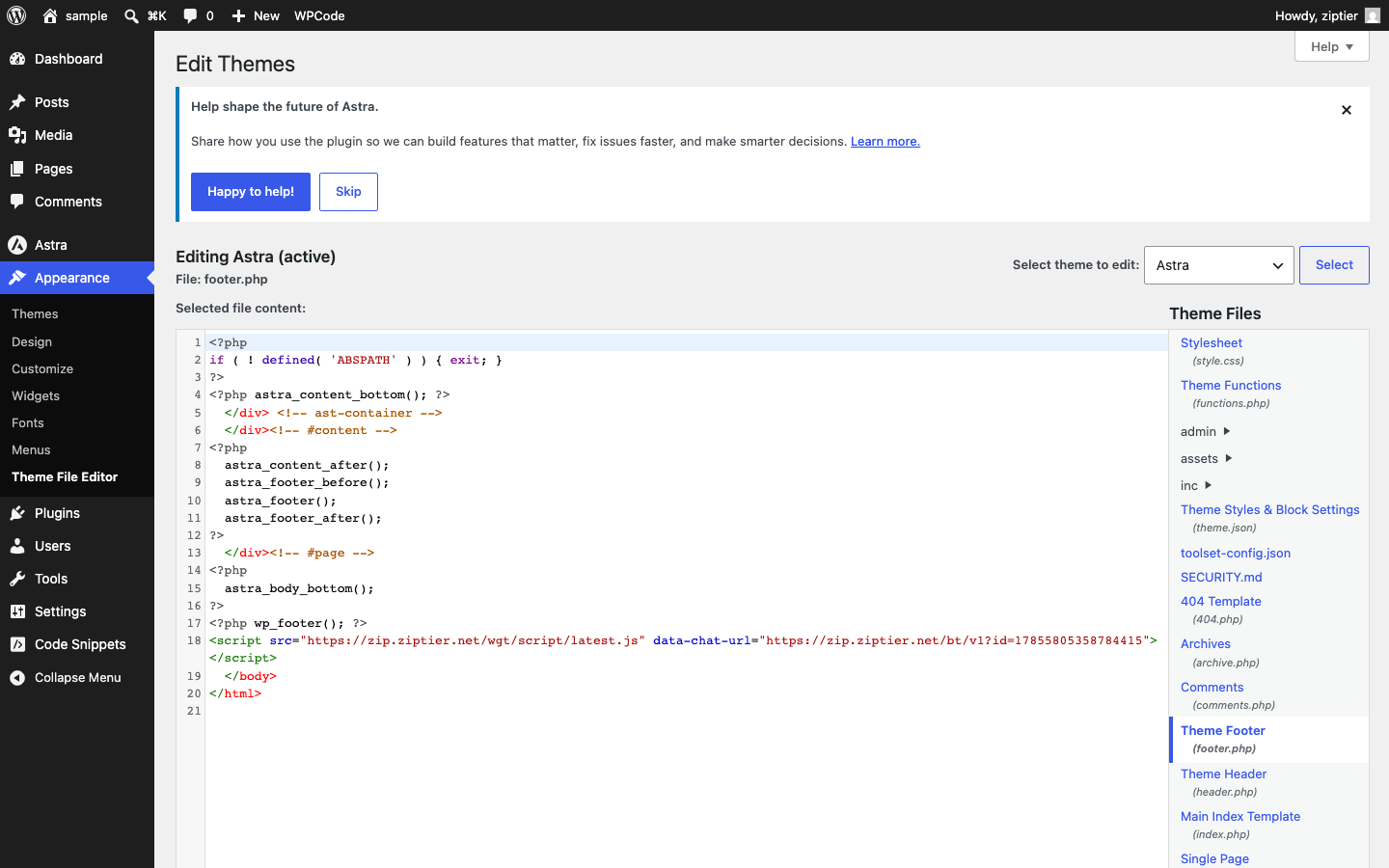
- Find the line
<?php wp_footer(); ?>near the bottom. Paste your ZipTier script tag immediately above it, not after it, and not after</body>.Below is footer.php open in the editor, showing the wp_footer() call near the bottom of the file.
<?php astra_body_bottom(); ?>
<script
  src="https://chat.ziptier.ai/wgt/script/latest.js"
  data-chat-url="https://chat.ziptier.ai/bt/v1?id=YOUR_CAMPAIGN_ID">
</script>
<?php wp_footer(); ?>
  </body>
</html>
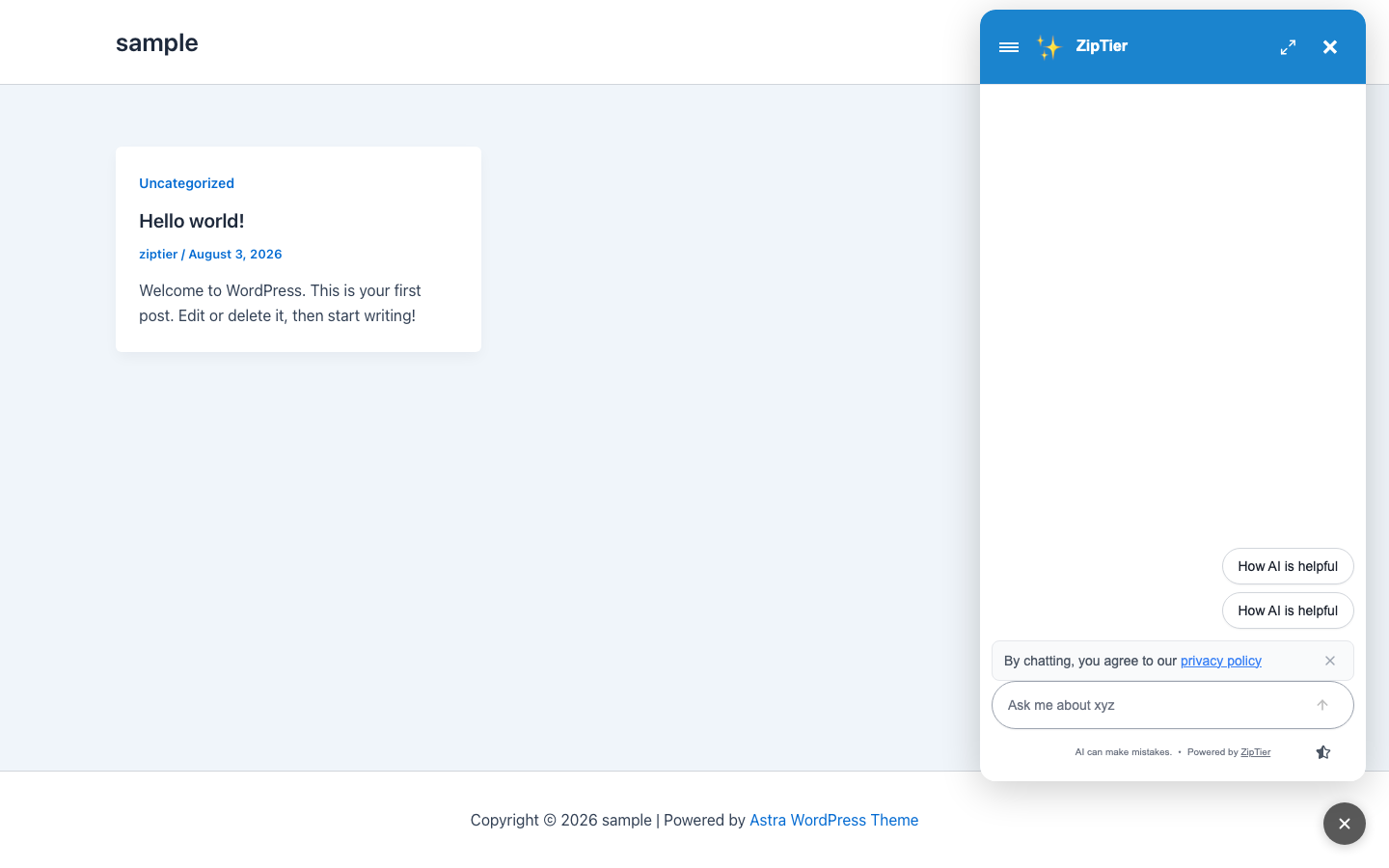
Replace YOUR_CAMPAIGN_ID with the ID from your campaign link. Click Update File to save. The floating widget button now appears on every page of your site. Clicking it opens the AI Assistant:
Below is the ZipTier AI Assistant opened on the site's front end after clicking the floating launcher button.
No Theme File Editor access? Some hosts and security plugins disable it. See Adding the Script via WPCode for a plugin-based alternative that needs no direct file editing.
← WordPress Integration overview | Next: Adding the Script via WPCode →