Part of WordPress Integration: 2 of 4.
Adding the Script via WPCode
If you don't have Theme File Editor access, or you'd rather not edit theme files directly, install the free WPCode plugin and follow the steps below instead.
- Go to Code Snippets > Add Snippet.
Below is WPCode's Add Snippet screen, with the Add Your Custom Code option in the Snippet Library.
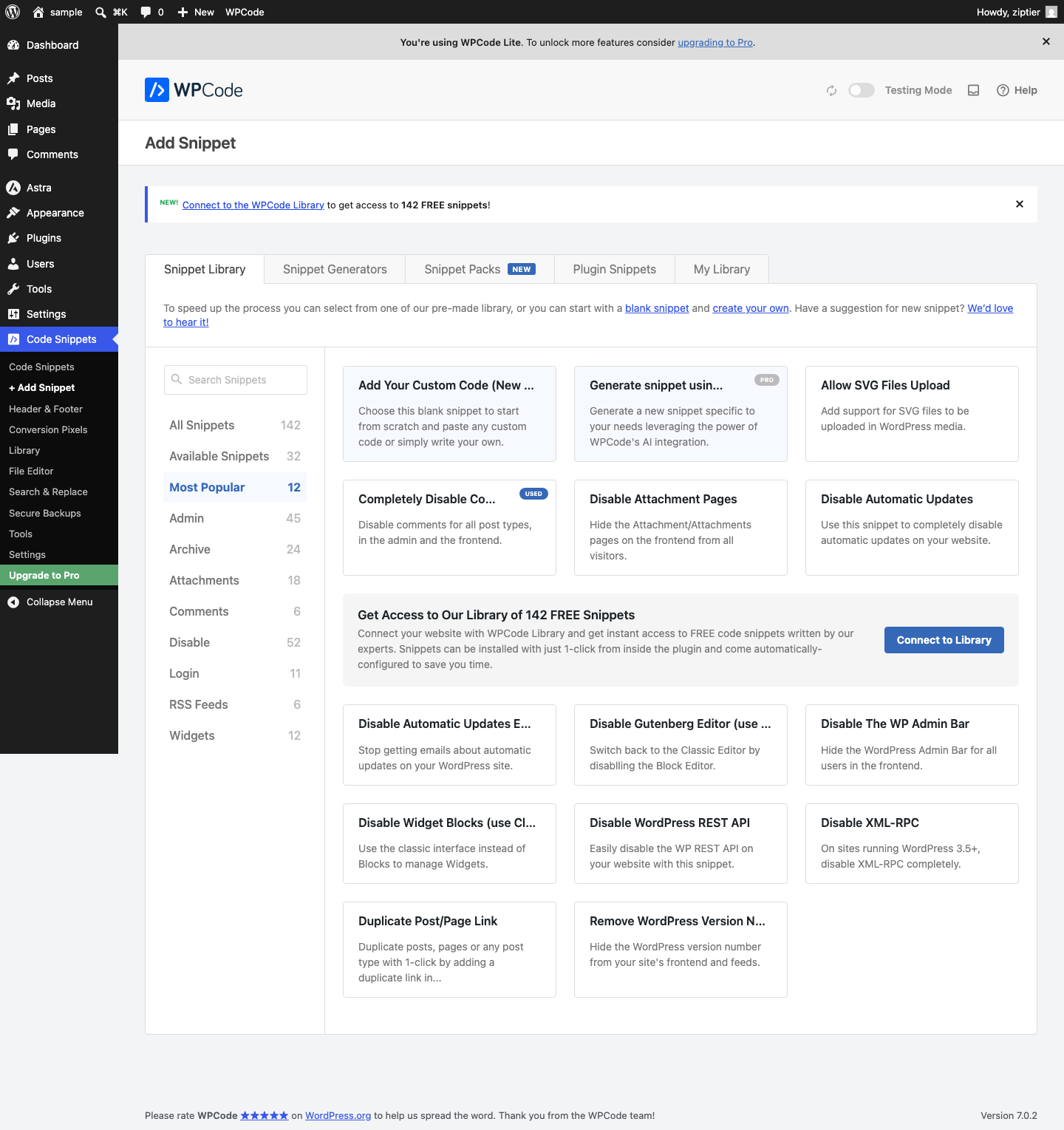
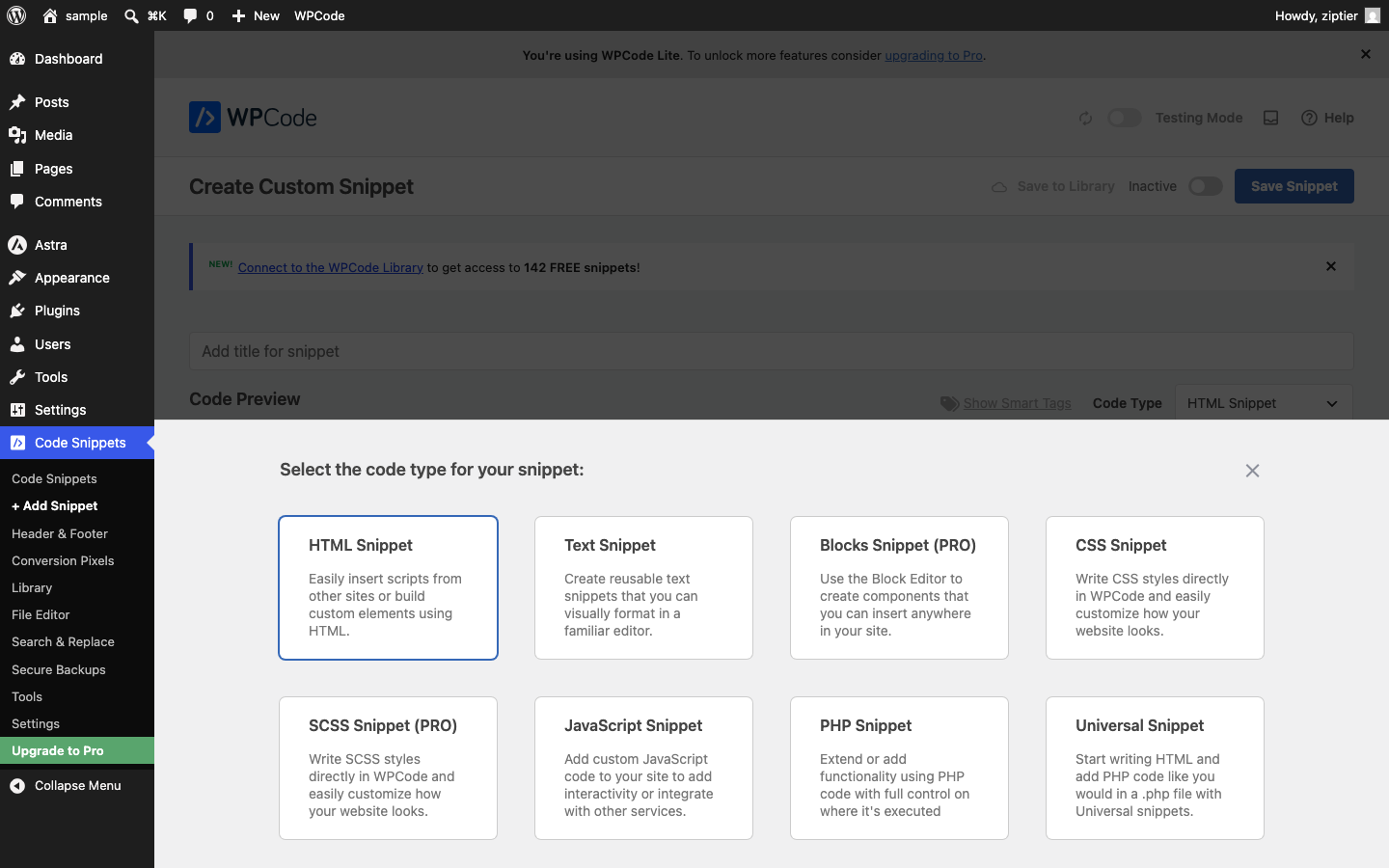
- Click + Add Custom Snippet and choose HTML Snippet as the code type (it's the default selection).
Below is the code type picker modal with HTML Snippet selected.
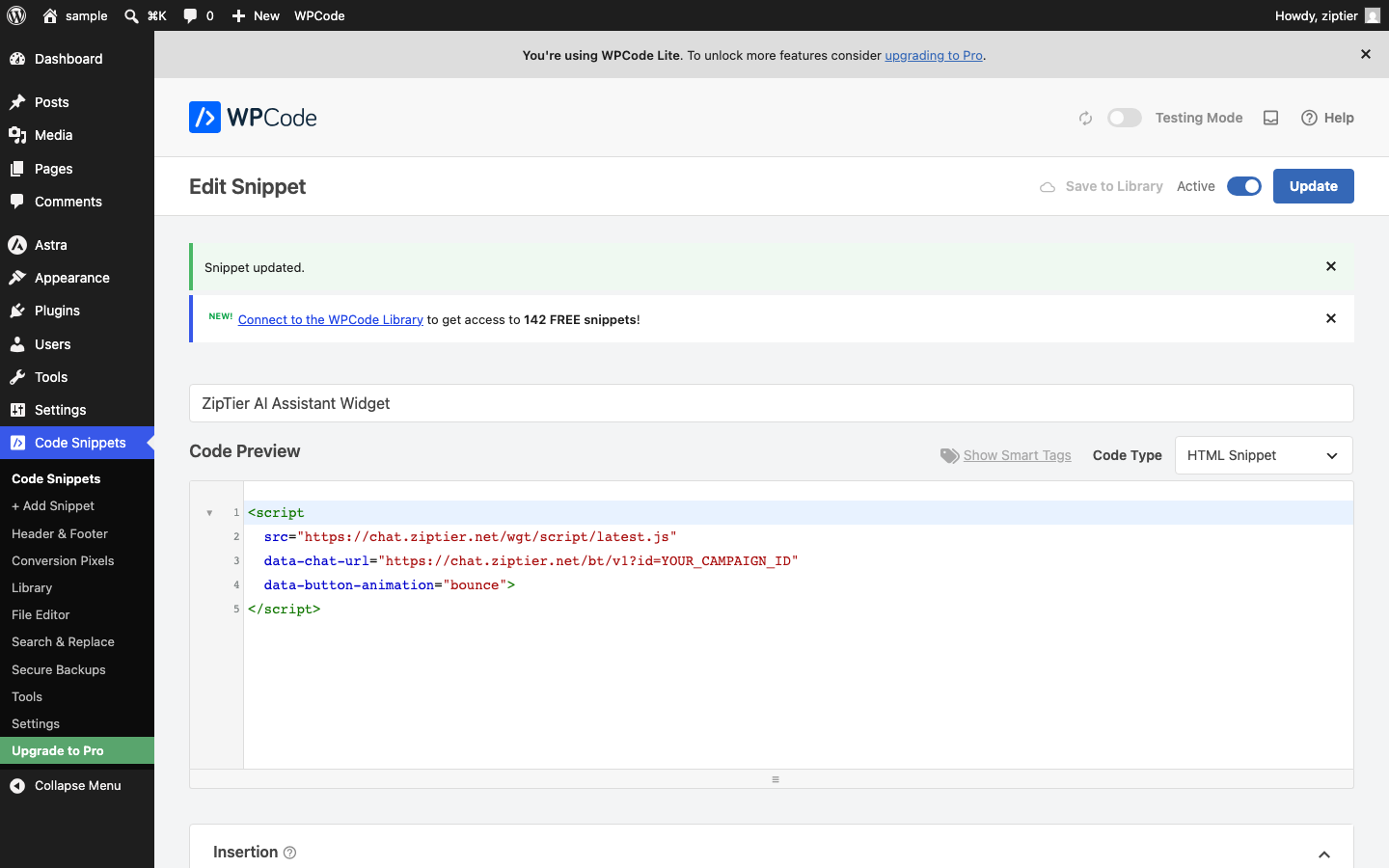
- Give the snippet a title (e.g. "ZipTier AI Assistant Widget") and paste your ZipTier script tag into the Code Preview editor.
Below is the snippet editor with a title set and the ZipTier script tag pasted into the code editor.
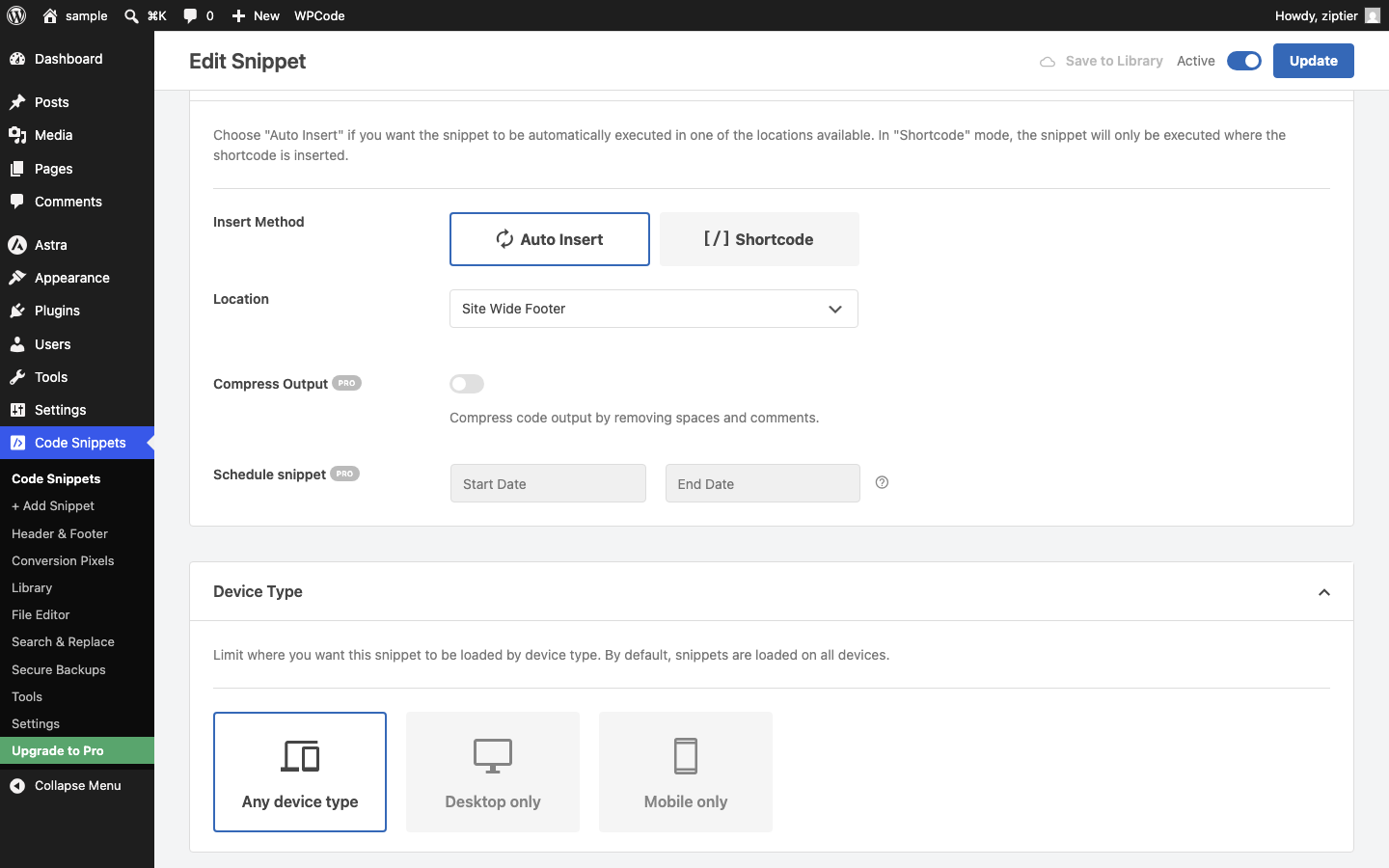
- Under Insertion, keep Auto Insert selected and set Location to Site Wide Footer.
Below is the Insertion settings panel with Auto Insert selected and Location set to Site Wide Footer.
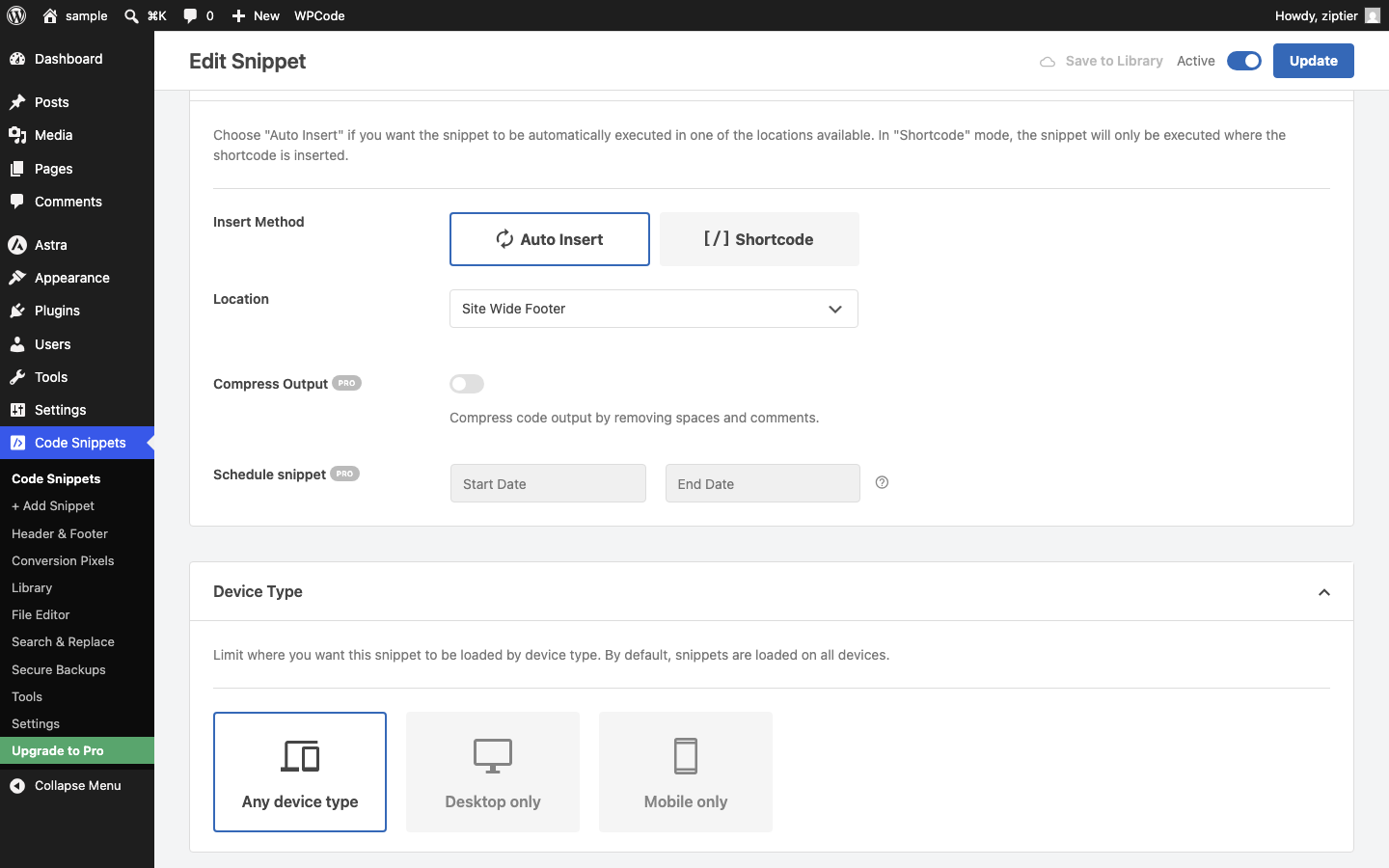
- Toggle the snippet from Inactive to Active in the top-right corner, then click Update (or Save Snippet if this is a new snippet).
Below is the saved snippet with the Active toggle on and a confirmation message.
The floating widget button now appears on every page of your site: no theme file editing required, and the snippet survives theme switches and updates.
← Add the Widget Script to footer.php | Next: Adding Custom Triggers →