HubSpot CRM Integration
ZipTier integrates with HubSpot CRM to automatically push high-scoring leads captured by your AI assistants directly into your HubSpot contacts. This guide walks you through connecting your HubSpot account, configuring field mappings, testing the integration, and monitoring sync activity.
Connecting Your HubSpot Account
Step 1: Open CRM Settings
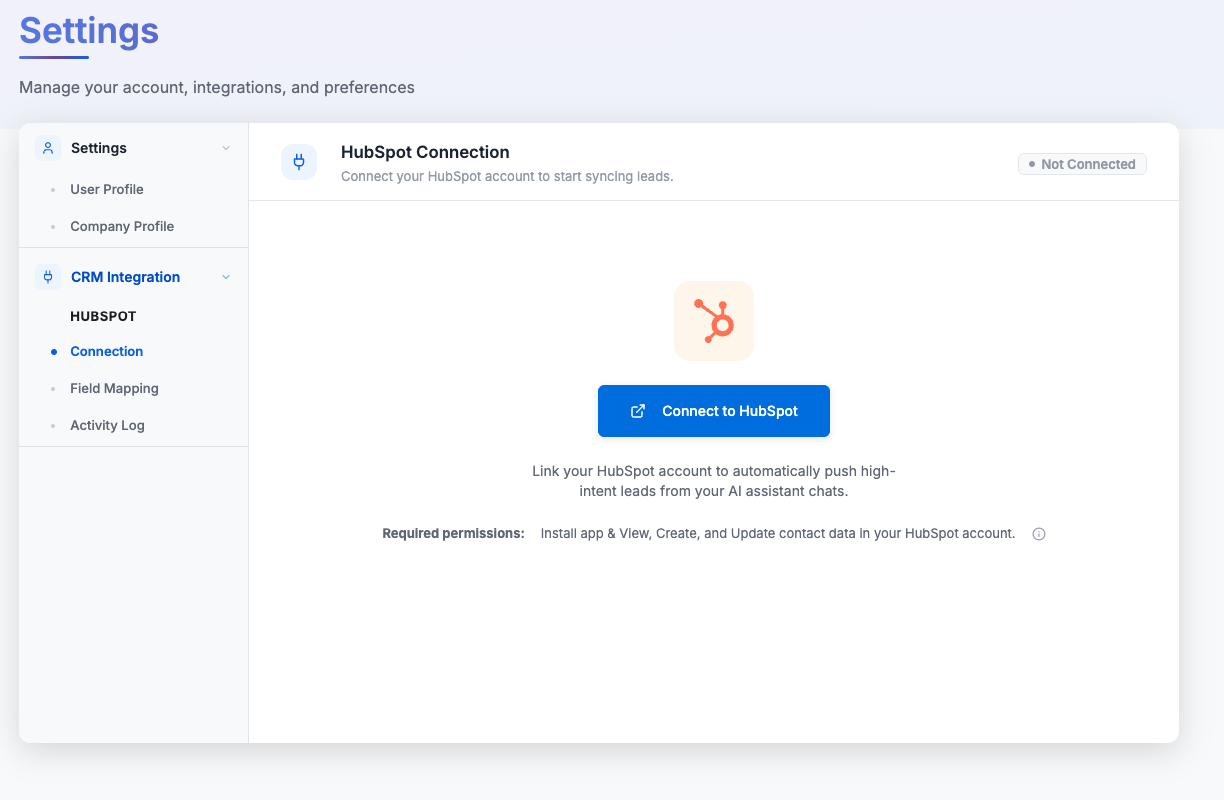
Click your profile avatar in the top-right corner of any page and select Settings. In the Settings sidebar, expand CRM Integration: you'll see HubSpot listed as a sub-section with three items: Connection, Field Mapping, and Activity Log. Click Connection to get started.
Below is the CRM Integration Connection page with the Connect to HubSpot button.
Step 2: Authorize with HubSpot
Click Connect to HubSpot. You'll be redirected to HubSpot's authorization page where you need to:
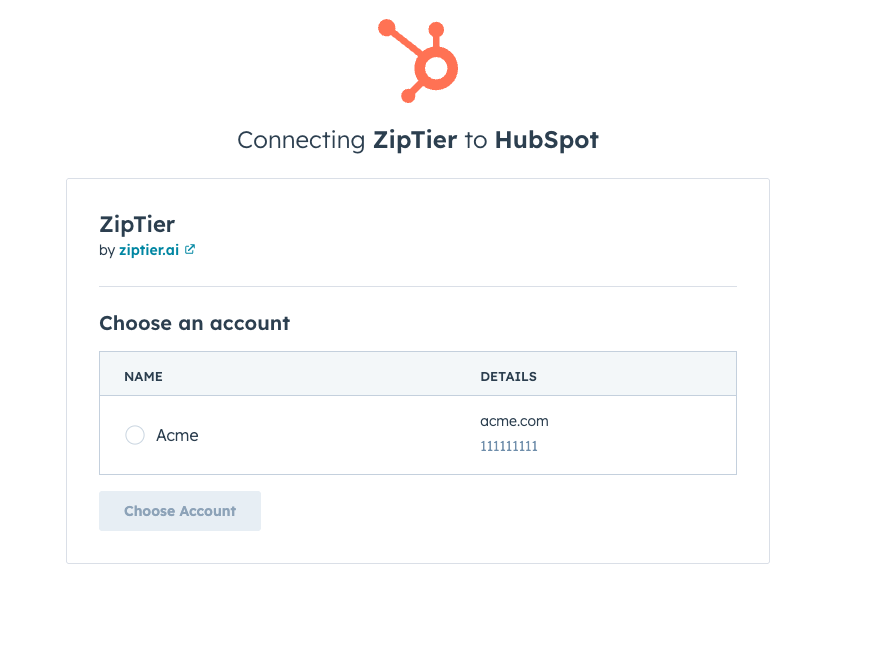
- Select the HubSpot account you want to connect (if you have multiple accounts).
Below is HubSpot's account selection screen, where you pick the account to connect with ZipTier.
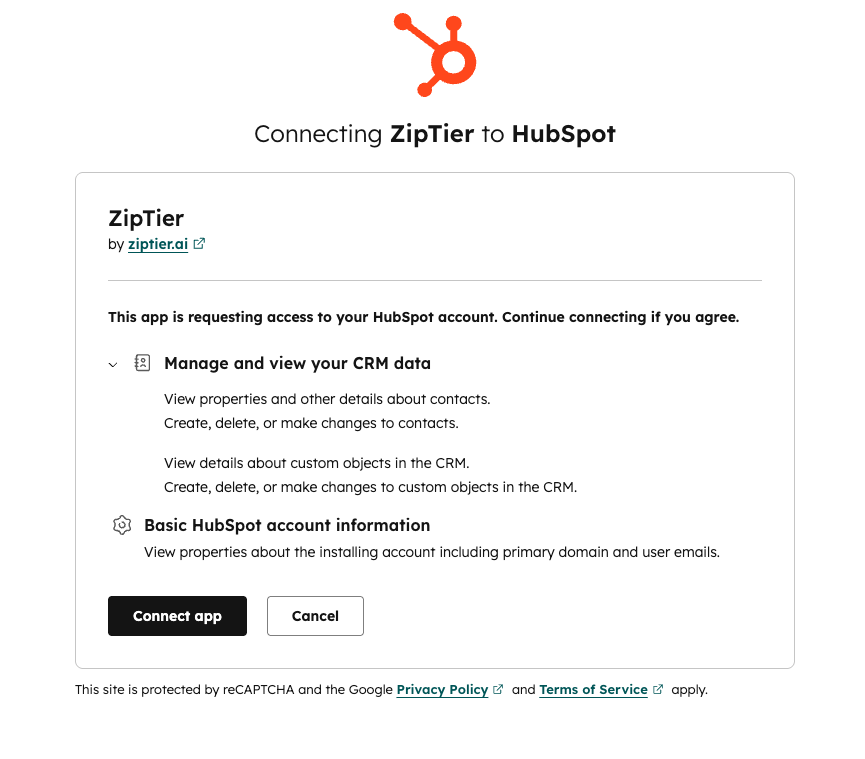
- Review the permissions ZipTier needs and click Connect app.
Below is HubSpot's permissions review screen, where you approve the permissions ZipTier requires.
Required Permissions
| Permission | Why It's Needed |
|---|---|
| Manage and view your CRM data | Allows ZipTier to create new contacts and update existing ones with lead information from AI assistant conversations. |
| Basic HubSpot account information | Allows ZipTier to verify the connected account and display your portal details in the Settings page. |
In addition to these app-level permissions, the HubSpot user performing the connection must have the App Marketplace Access permission to install apps on the account. This permission is granted by default to Super Admins in HubSpot.
- Grant you the App Marketplace Access permission, or
- Perform the ZipTier connection on your behalf from the Settings page
Step 3: Confirmation
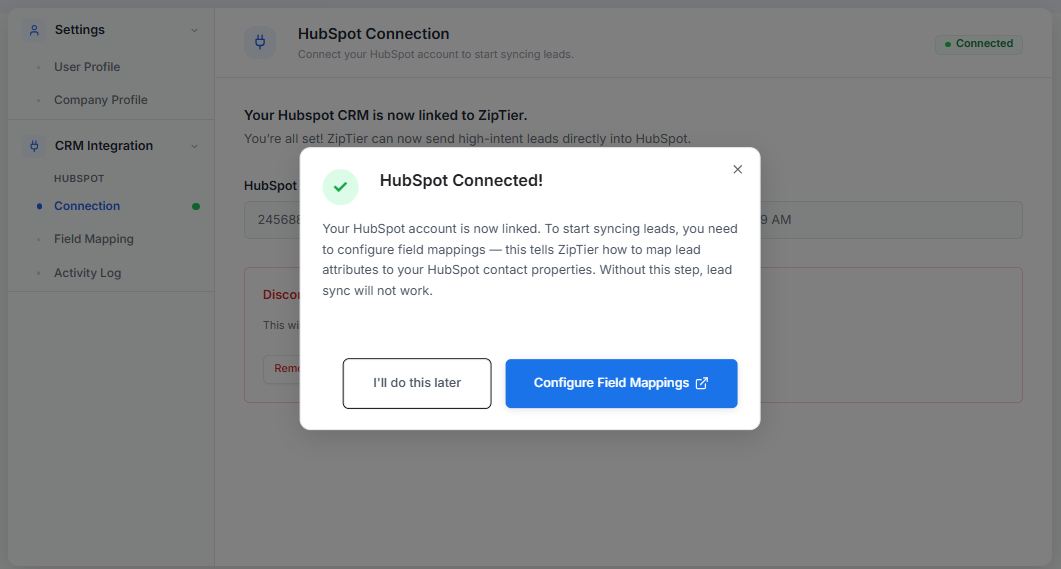
After authorizing, you'll be redirected back to ZipTier and see a confirmation dialog indicating that HubSpot is now connected.
Below is the confirmation dialog shown once HubSpot is connected, prompting you to configure field mappings next.
Field Mapping
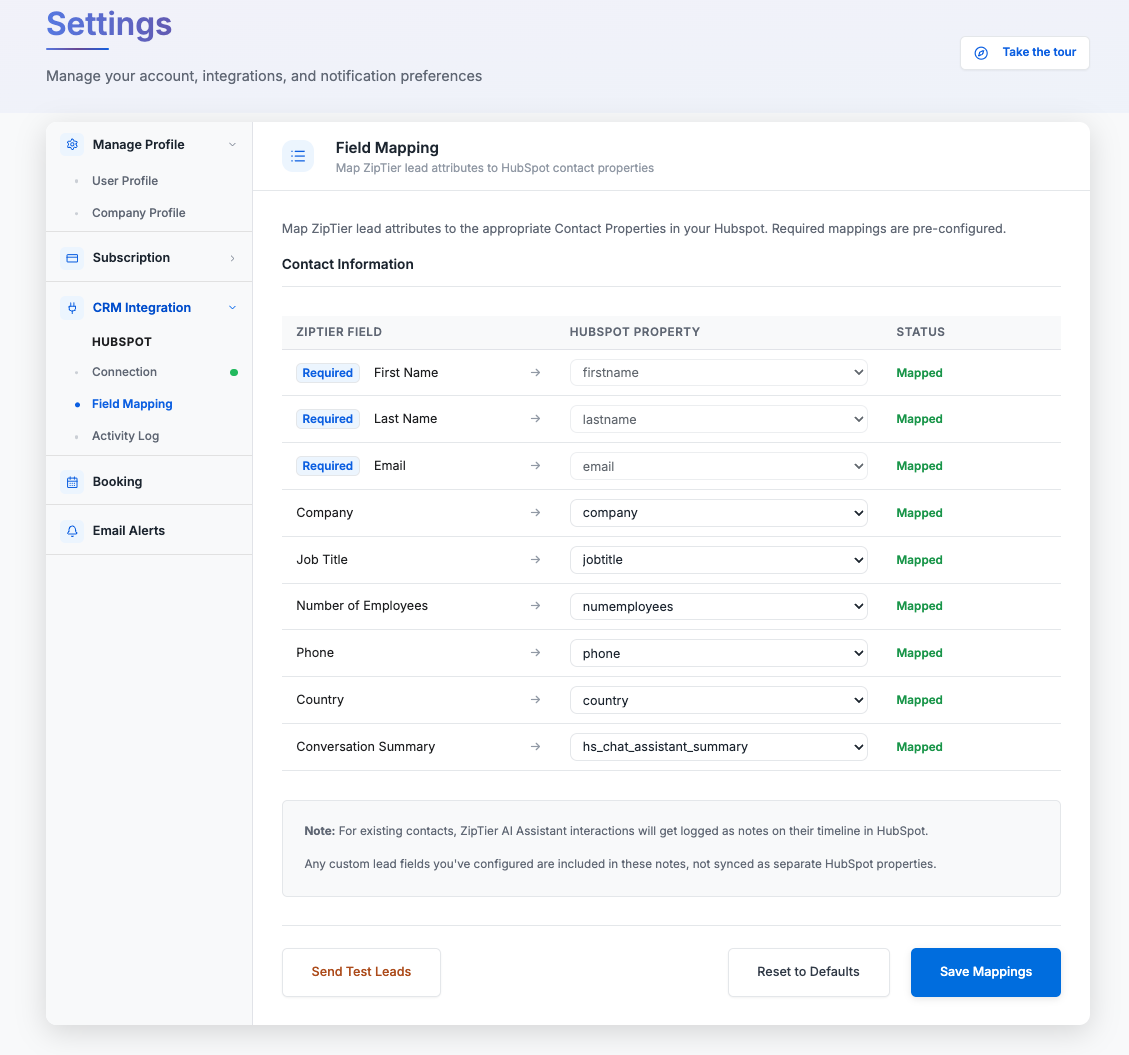
Field mappings define how lead attributes captured by ZipTier (name, email, company, etc.) correspond to contact properties in your HubSpot CRM. Navigate to Settings > CRM Integration > Field Mapping.
Below is the Field Mapping table, showing ZipTier fields mapped to their corresponding HubSpot properties.
Available Fields
| ZipTier Field | Default HubSpot Property | Required | Description |
|---|---|---|---|
| First Name | firstname | Yes | Prospect's first name as provided during the conversation |
| Last Name | lastname | Yes | Prospect's last name |
email | Yes | Contact email captured during the conversation | |
| Company | company | No | Company name if mentioned during the conversation |
| Job Title | jobtitle | No | Role or title if mentioned (Authority signal) |
| Number of Employees | numemployees | No | Company size range if mentioned during the conversation |
| Phone | phone | No | Phone number if provided |
| Country | country | No | Country based on visitor information |
| Conversation Summary | hs_chat_assistant_summary | No | AI-generated summary of the conversation including key topics and intent signals |
Required mappings are pre-configured and locked. Optional fields can be mapped to any HubSpot contact property from the dropdown, or set to Do not map if you don't want to sync that field.
Custom Properties
The HubSpot property dropdown includes all standard and custom contact properties from your HubSpot account. If you've created custom properties in HubSpot (e.g., lead_source, chat_campaign), they will appear in the dropdown and can be mapped to ZipTier fields.
Custom Lead Fields
Besides the standard fields above, a campaign can also ask for custom lead fields, configured per campaign on the campaign's customize page as a text or dropdown question.
- Custom field answers aren't mapped to a HubSpot property. Since each one is defined by the marketer at the campaign level, there's no fixed contact property to map it to.
- Instead, they're logged as label/value rows in the AI Assistant conversation note on the contact's timeline, ordered the same way they're arranged on the campaign's customize page.
- A lead's custom field answers appear in the note even if that field is later disabled or removed from the campaign, since the visitor did provide that answer.
Existing Contacts
Actions
- Save Mappings: saves your current field mapping configuration and activates lead sync.
- Reset to Defaults: restores all mappings to their default HubSpot properties.
- Send Test Leads: pushes a sample test lead to your HubSpot to verify the integration is working correctly. Check your HubSpot contacts after sending to confirm the data appears as expected.
Activity Log
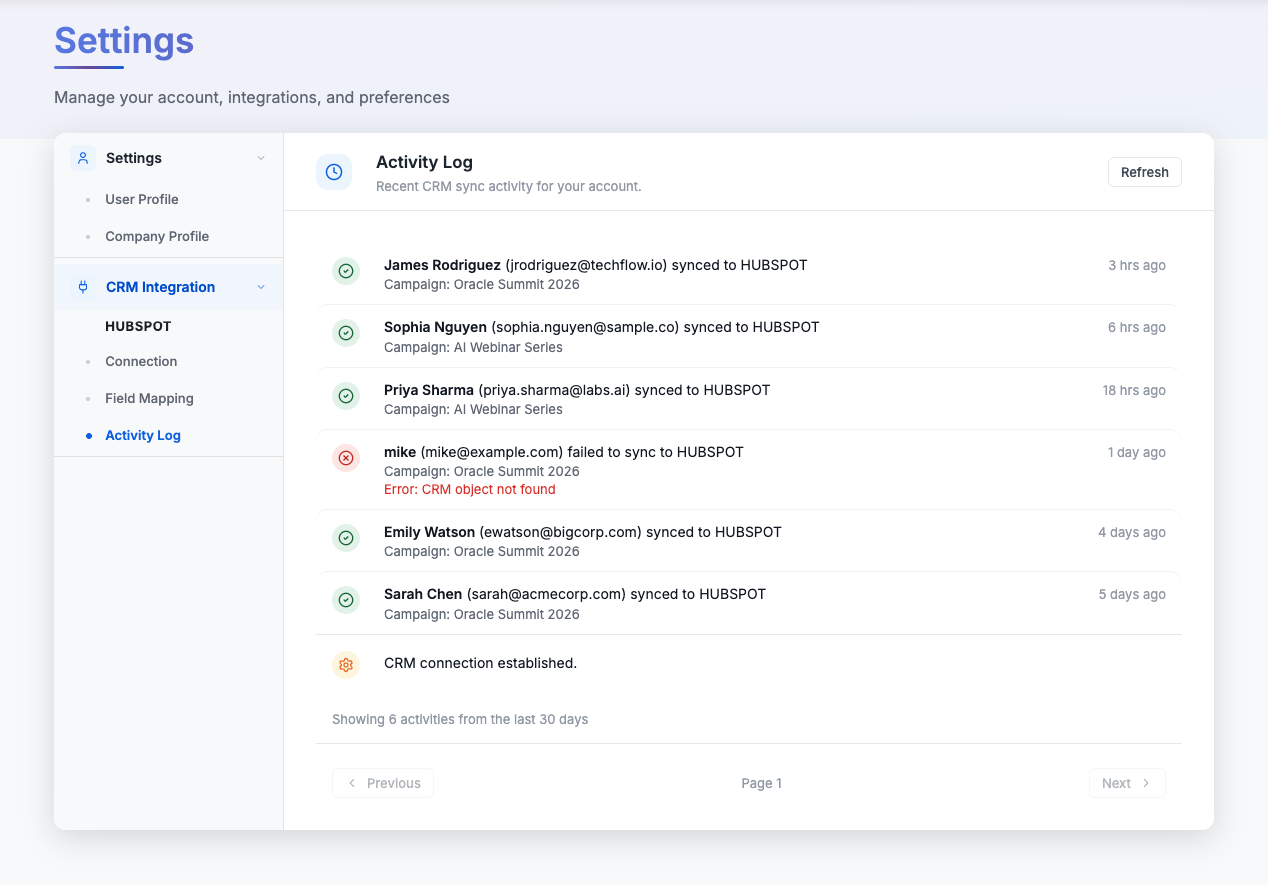
The Activity Log provides a real-time view of all lead sync activity between ZipTier and your HubSpot CRM. Navigate to Settings > CRM Integration > Activity Log.
Below is the Activity Log, showing recent CRM sync activity between ZipTier and HubSpot.
Activity Types
| Type | Description |
|---|---|
| Sync Success | A lead was successfully created or updated in HubSpot. |
| Sync Failed | A lead failed to sync. Common causes: expired token, missing required fields, HubSpot API limits. |
Click Refresh to load the latest activity entries.
Disconnecting HubSpot
To disconnect your HubSpot account, go to Settings > CRM Integration > Connection and click Disconnect in the danger zone at the bottom of the page.
- New high-scoring leads will stop syncing to HubSpot.
- Existing contacts in HubSpot are not affected or deleted.
- You will continue to receive lead alerts via email.
- You can reconnect at any time by clicking Connect to HubSpot again.
Troubleshooting
Leads are not syncing
- Verify that your HubSpot connection shows Connected status in Settings.
- Check that field mappings are saved: lead sync won't work without configured mappings.
- Review the Activity Log for error messages.
- Ensure your HubSpot account has not exceeded its API rate limits.
Connection shows "Not Connected" after it was previously connected
- Your HubSpot authorization may have expired. Click Connect to HubSpot to re-authorize.
- Check if a HubSpot admin revoked the ZipTier app's access in HubSpot settings.
Duplicate contacts in HubSpot
- ZipTier matches on email address. If the same prospect uses different email addresses across conversations, separate contacts will be created.
- Use HubSpot's built-in duplicate management tools to merge contacts if needed.