Salesforce Integration
ZipTier sends every new lead with an email address to Salesforce as a new Lead: high-scoring leads within about 5 minutes, and all other leads with the twice-daily analytics refresh. It uses Salesforce's built-in Web-to-Lead, so there is no app to install: your Salesforce admin turns Web-to-Lead on, and you paste your Organization ID into ZipTier. This guide covers setup, what ZipTier sends, testing, and the Activity Log.
Connecting Salesforce
Step 1: Turn on Web-to-Lead in Salesforce
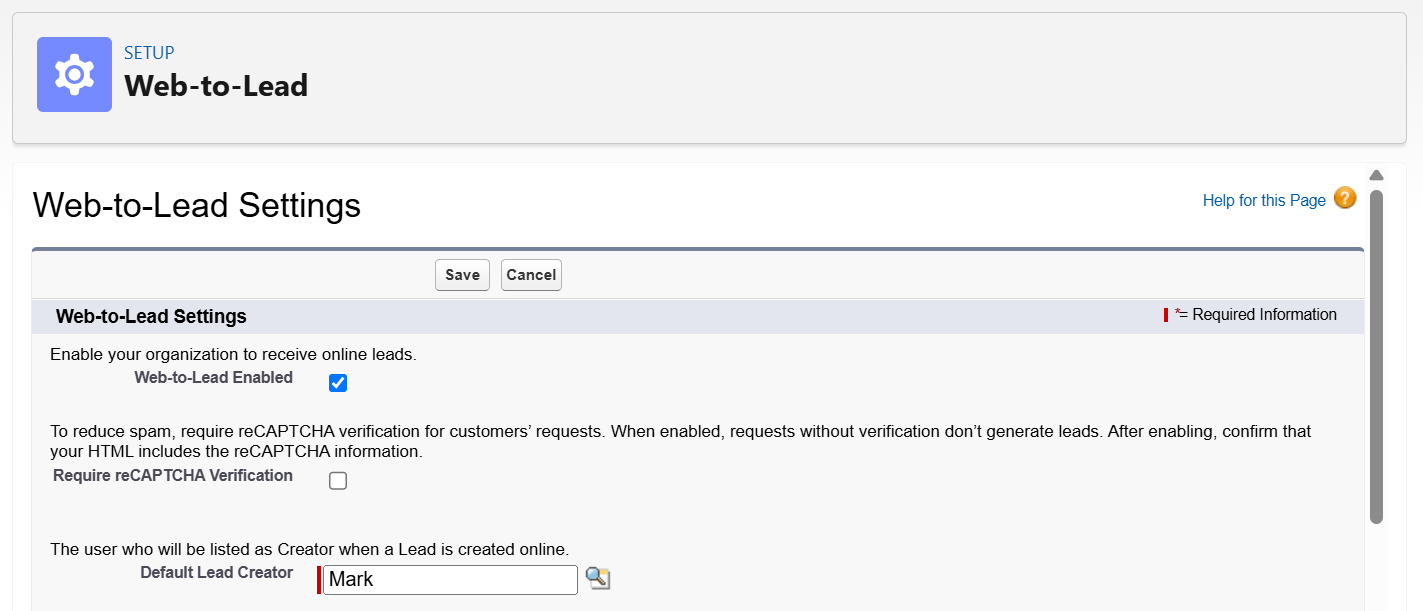
This step needs a Salesforce admin. In Salesforce, click the gear icon and select Setup. In the Quick Find box, enter Web-to-Lead, select it and click Edit, then:
- Turn on Web-to-Lead Enabled.
- Turn off Require reCAPTCHA Verification. ZipTier sends leads from its servers, so a reCAPTCHA check would block them.
- Choose a Default Lead Creator, usually your Salesforce admin or whoever manages leads. This user owns new Leads that your assignment rules don't assign, and gets Salesforce's email when a Lead can't be created.
- Click Save.
Below is Salesforce's Web-to-Lead settings page, with Web-to-Lead on, reCAPTCHA off and a Default Lead Creator chosen.
Step 2: Copy your Organization ID
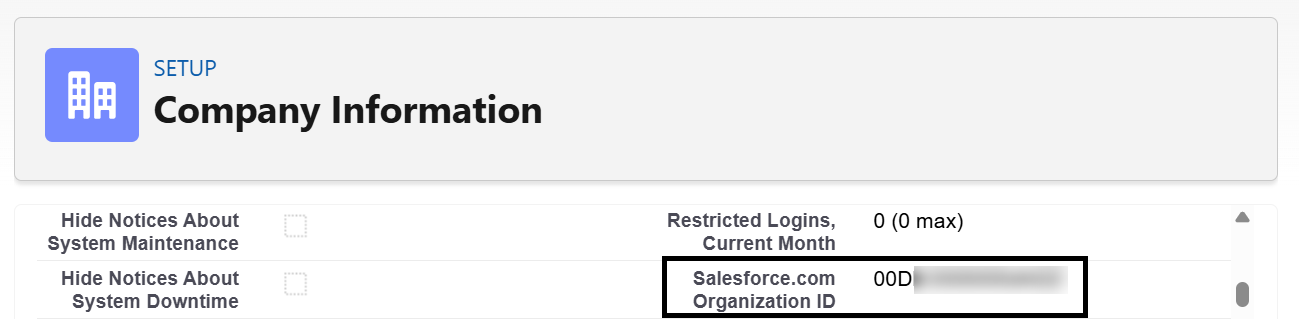
In Setup, enter Company Information in the Quick Find box, select it and copy the Salesforce.com Organization ID. It starts with 00D and is 15 or 18 characters long. Use your production org: Salesforce sandbox orgs aren't supported.
Below is Salesforce's Company Information page, where you copy the Salesforce.com Organization ID.
Step 3: Connect in ZipTier
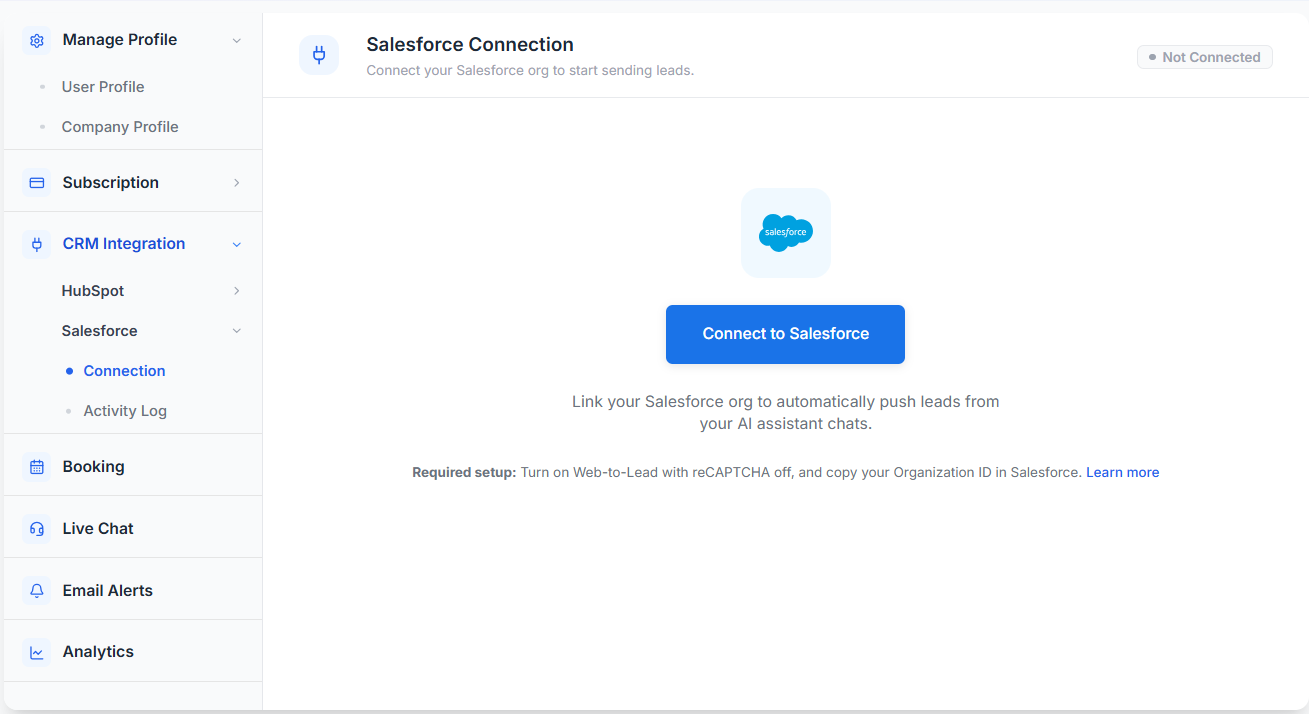
Click your profile avatar in the top-right corner of any page and select Settings. In the Settings sidebar, expand CRM Integration, then Salesforce: you'll see Connection and Activity Log. Open Connection, click Connect to Salesforce, paste your Organization ID and click Connect.
Below is the Salesforce Connection page in ZipTier Settings with the Connect to Salesforce button.
Below is the Connect Salesforce dialog, where you paste your Organization ID.
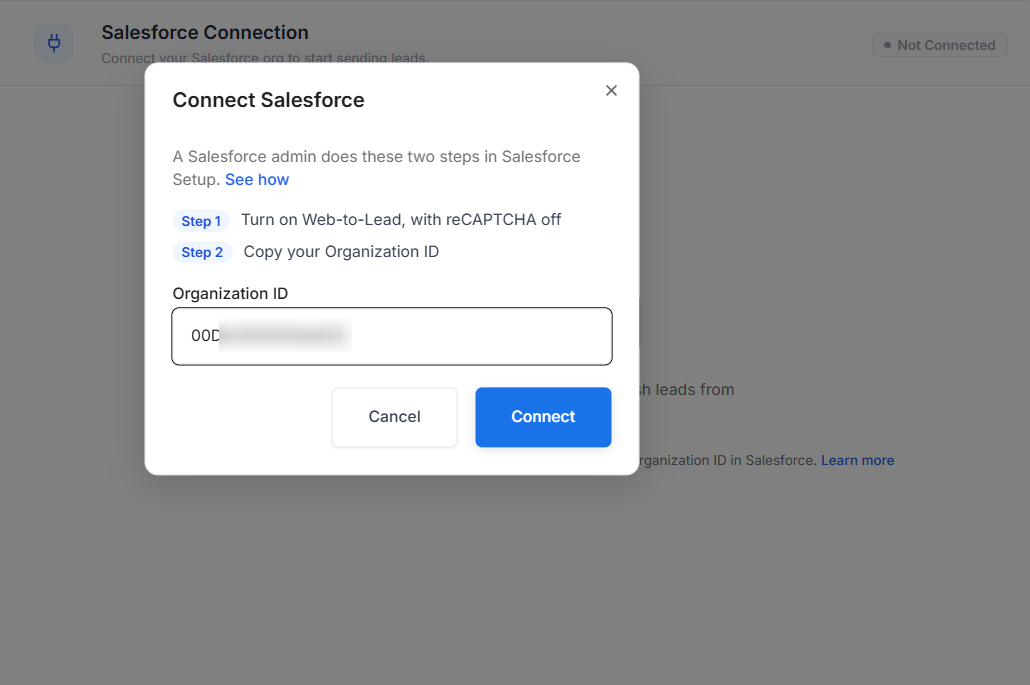
You can also paste the HTML of a Web-to-Lead form generated in Salesforce: ZipTier finds the Organization ID in it.
Step 4: Send a test lead
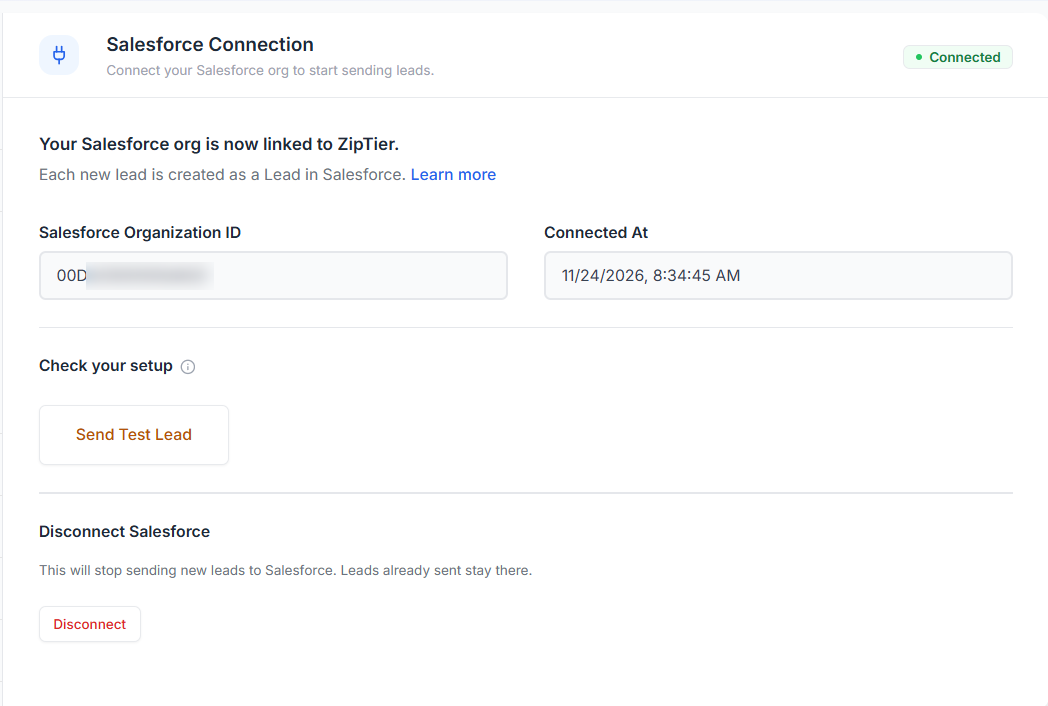
On the Connection page, under Check your setup, click Send Test Lead. A Lead named ZipTier TestLead should appear under Leads in Salesforce within a minute. If it doesn't, see Troubleshooting. To send it again, delete the old test lead first, or your Salesforce duplicate rules may block the new one.
Below is the Connection page once Salesforce is connected, showing your Organization ID and the Send Test Lead button.
Which Leads Go to Salesforce?
Every lead with an email address reaches Salesforce, in one of two ways:
- High-scoring leads are sent within about 5 minutes, together with the email alert.
- All other leads are sent with the twice-daily analytics refresh, once ZipTier has summarized and scored the conversation, so usually within a day.
A person already sent to Salesforce is skipped, whichever way they come back. New Leads are created by your Default Lead Creator and follow your Salesforce assignment rules.
What ZipTier Sends
The fields are fixed, so there is no field mapping to set up.
| Salesforce Lead field | What ZipTier puts in it |
|---|---|
| First Name, Last Name | The visitor's name. With no last name, Salesforce shows "[not provided]". |
| Email, Phone | The visitor's contact details |
| Company, Title | The visitor's company and job title, if they gave them. With no company, Salesforce shows "[not provided]". |
| Country | The country the visitor gave in the chat, if it's a full country name such as "United States"; otherwise the country of their internet connection |
| Lead Source | Always ZipTier |
| Description | Plain text: campaign, lead score (High, Medium or Low), intent signals, employee size, answers to your custom lead fields, and the AI-written conversation summary |
Employee size goes in the Description rather than the Employees field, because Salesforce expects a single number there and rejects a range such as 51-200.
Activity Log
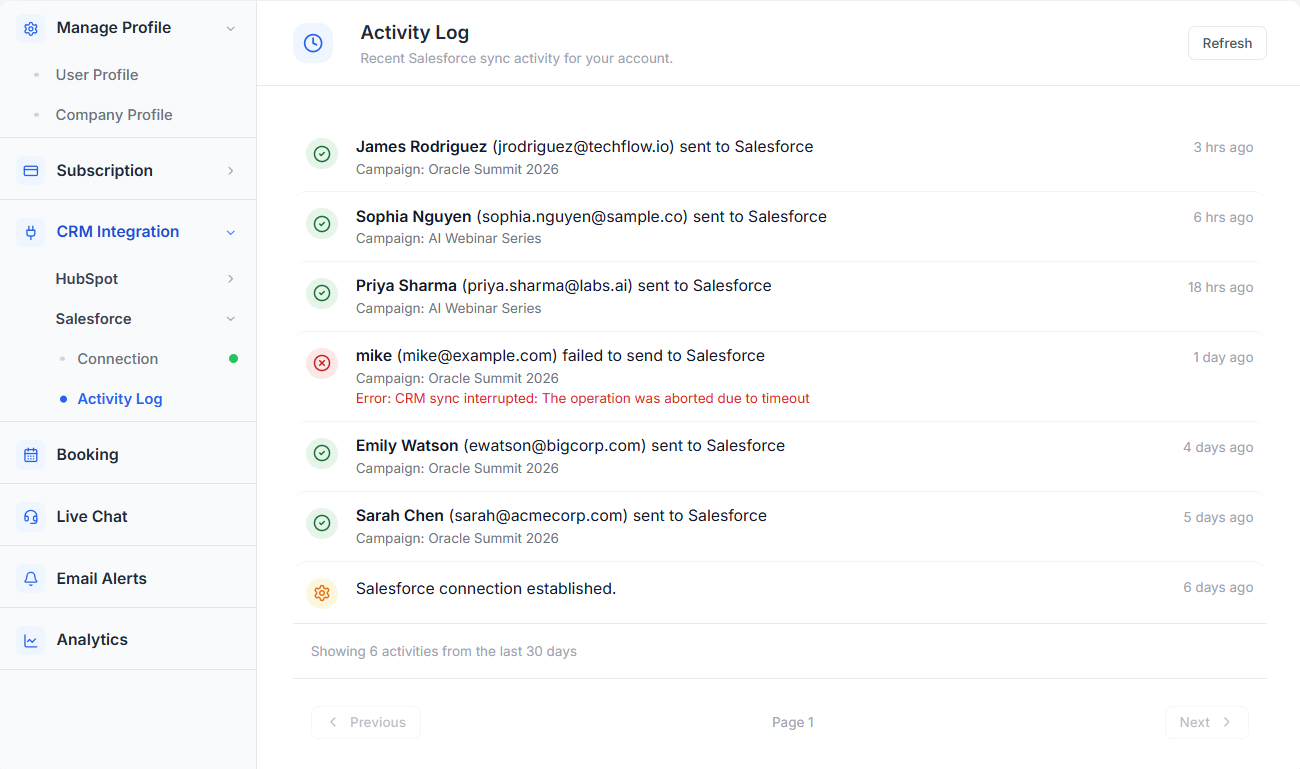
The Activity Log lists every lead ZipTier has sent to Salesforce in the last 30 days. Navigate to Settings > CRM Integration > Salesforce > Activity Log, and click Refresh to load the latest entries. Test leads aren't listed.
Below is the Salesforce Activity Log, listing the leads ZipTier has sent to Salesforce.
| Entry | Meaning |
|---|---|
| sent to Salesforce | ZipTier sent the lead and Salesforce accepted it. Salesforce doesn't confirm that the Lead was created, so this means sent, not created. |
| failed to send to Salesforce | The lead didn't reach Salesforce, for example because your plan isn't active or Salesforce didn't respond. When Salesforce didn't respond, ZipTier tries again with the next analytics refresh. |
Disconnecting Salesforce
Go to Settings > CRM Integration > Salesforce > Connection and click Disconnect at the bottom of the page.
- New leads stop going to Salesforce.
- Leads already in Salesforce stay there and are not deleted.
- You will continue to receive lead alerts via email.
- You can reconnect at any time with Connect to Salesforce.
Troubleshooting
The test lead doesn't appear in Salesforce
- Check that Web-to-Lead Enabled is on and Require reCAPTCHA Verification is off.
- Check the Organization ID on the Connection page matches Company Information in Salesforce. If it doesn't, disconnect and connect again with the right one.
- If you sent a test lead before, delete it in Salesforce first: your duplicate rules may block a second one.
- Check the Organization ID is from your production org. Salesforce sandbox orgs aren't supported.
The Activity Log says "sent" but the Lead isn't in Salesforce
- Salesforce accepts every Web-to-Lead request first and may drop the Lead afterwards, for example because of a duplicate rule, a validation rule, or the limit of 500 Web-to-Lead Leads per day. When that happens, Salesforce emails your Default Lead Creator with the reason.
A returning visitor's new details aren't in Salesforce
- This is expected: each person is sent once. Their latest conversation, score and details are always in ZipTier's Leads view.